A frightening message in the corner of the screen is not automatically a warning from your operating system. Websites with notification permission can send alerts through the browser. Identify the sender before calling a number, installing a cleaner or entering payment details.
Read the origin, not the headline
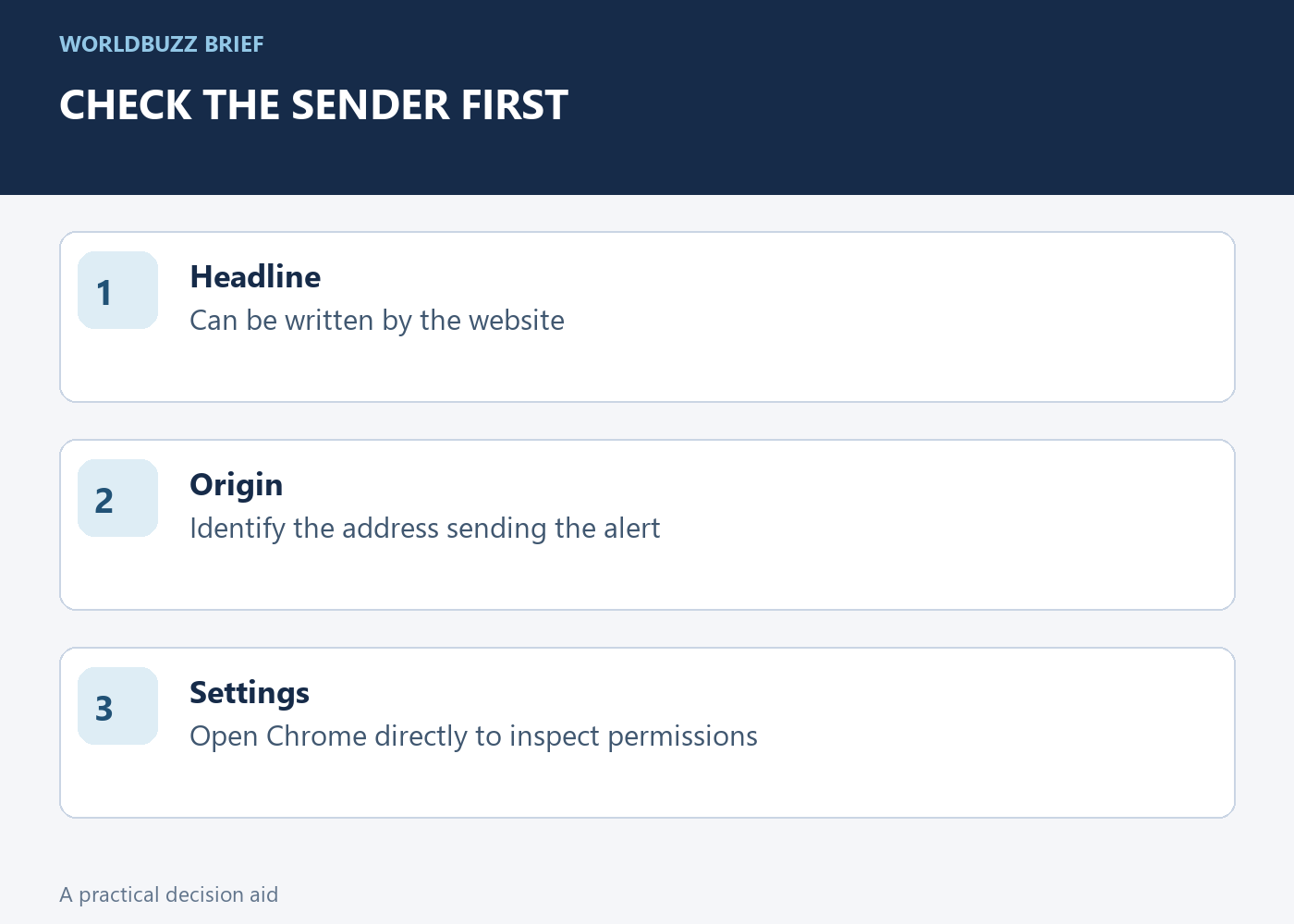
Look for the browser name and website address attached to the notification. A site can write an alarming headline and display familiar-looking imagery. That presentation does not turn it into your installed security software. Avoid using the alert's own buttons as your first route to investigate the problem.
Instead, open Chrome directly and inspect notification permissions through its settings. On desktop, the relevant area is Privacy and security, Site settings, Notifications. Interface labels may vary, but the goal is to reach the browser's own list of allowed sites. Take note of the suspicious origin so you can identify the permission you intend to change.
Block the unwanted site's permission
Find the origin in Chrome's notification settings and block it if you do not want notifications from it. Removing a permission can allow a site to ask again later; blocking is a clearer choice when the site is unwanted. Do not disable every useful website merely because one origin is abusing its permission.
After changing the setting, close the suspicious page and watch for recurrence. If alerts continue, inspect whether another origin or another browser is responsible. The same-looking message can come from a different permission entry. Keep this diagnosis separate from the question of whether you installed anything or entered information while responding to an earlier alert.
Distinguish the message from what happened afterward
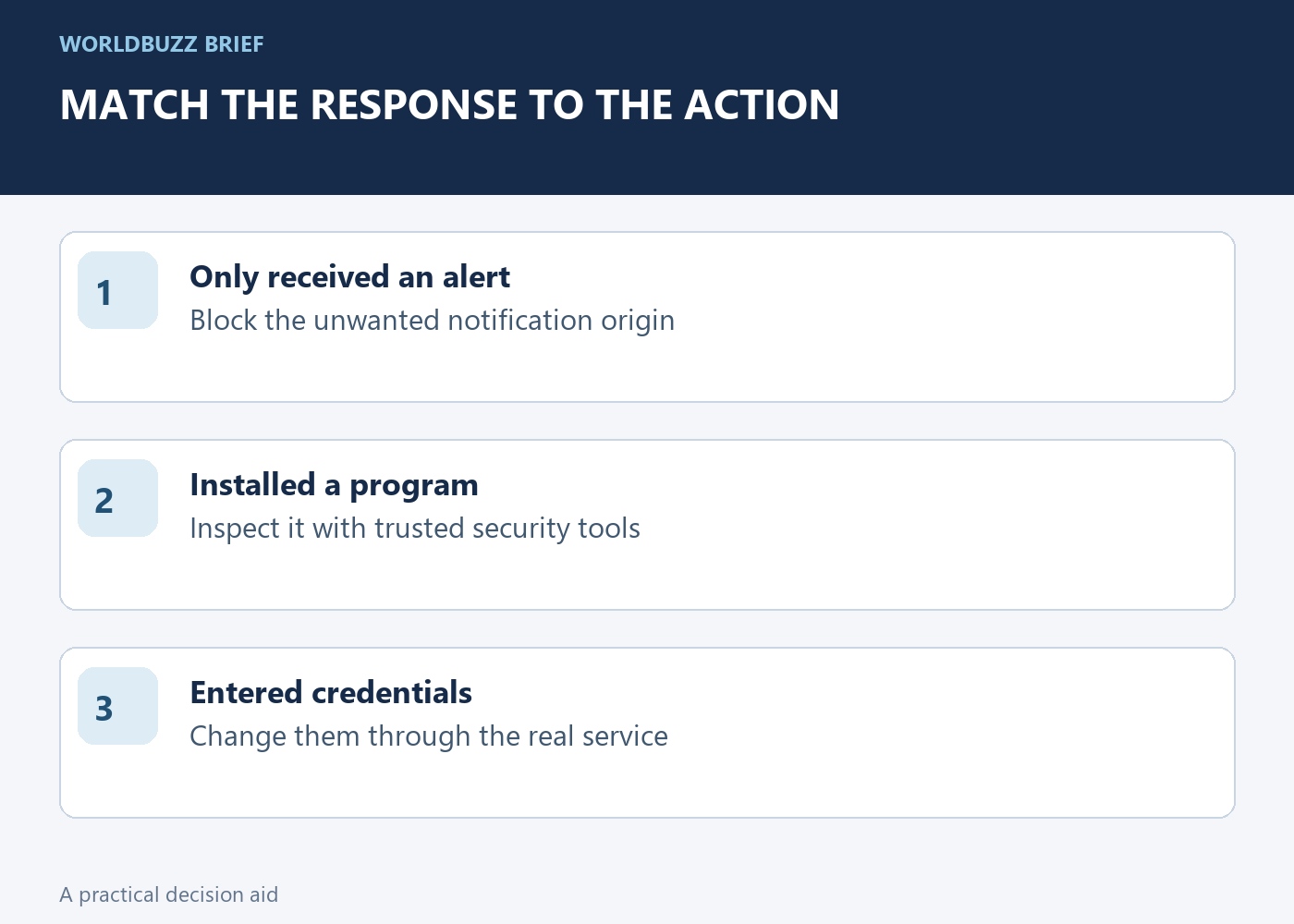
Receiving an unwanted notification and installing an unknown program are different incidents. If you only saw the message, removing its permission addresses that notification route. If you downloaded and ran software, investigate the downloaded file and use your trusted device-security tools. A browser permission change does not undo a program installation.
If you entered a password, change it through the service's known website or app, not through the alert. If you supplied payment information, contact the relevant provider through a trusted route. Write down what you actually did. This helps you take a proportionate next step without assuming either that nothing happened or that the whole device must be compromised.
Make the next permission request a deliberate choice
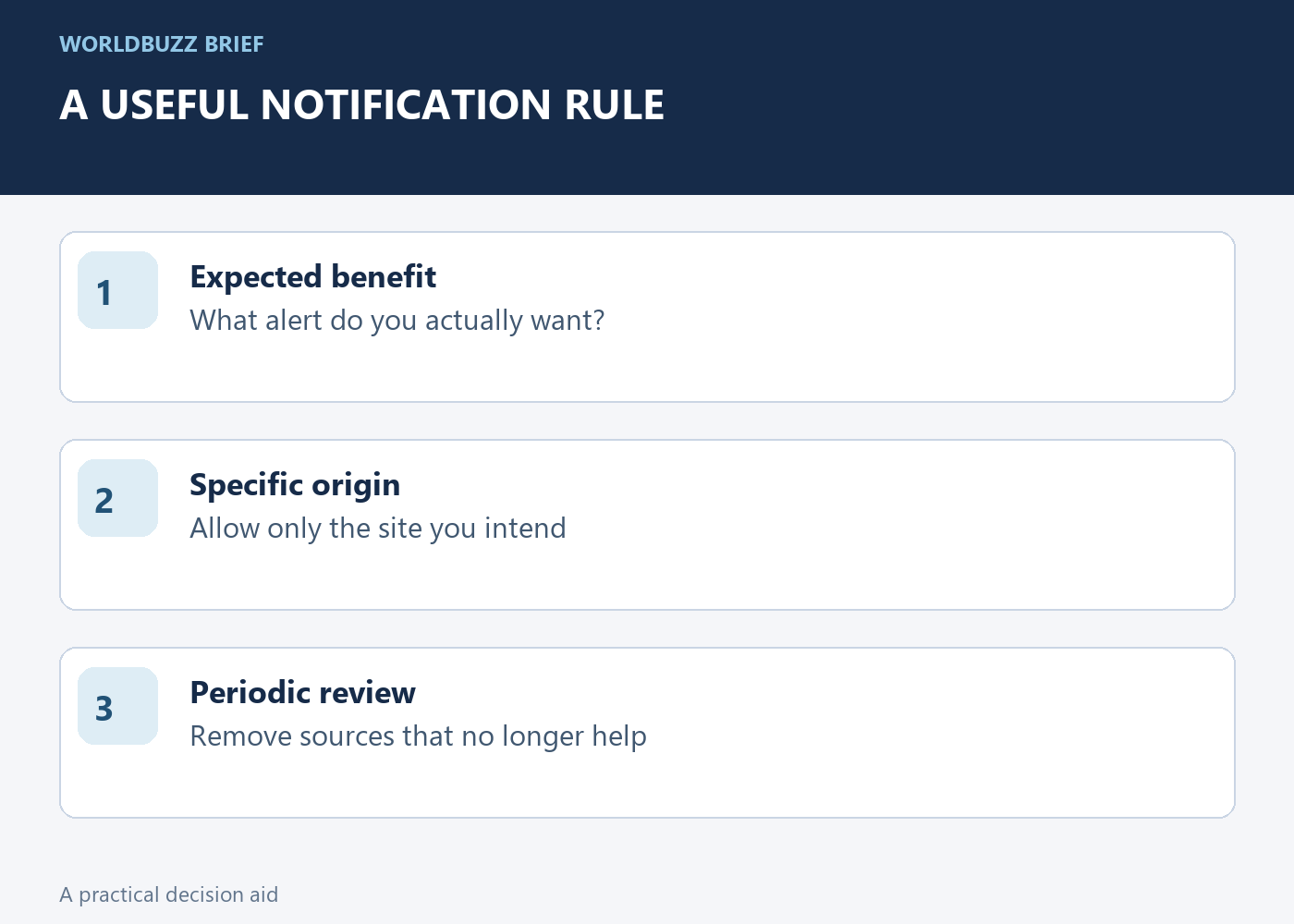
When a site asks to send notifications, ask what useful alert you expect to receive. A document download, video or routine page visit usually does not require you to accept unrelated alerts. You can decline the request and reconsider later if a real use emerges.
Keep a short list of origins you intentionally allow, and review it when alerts become noisy. Test the result by using the browser normally rather than reopening the suspicious notification. Success means the unwanted source can no longer interrupt you, while the services you deliberately use still work. It does not require installing another utility promoted by the very message you were trying to remove.