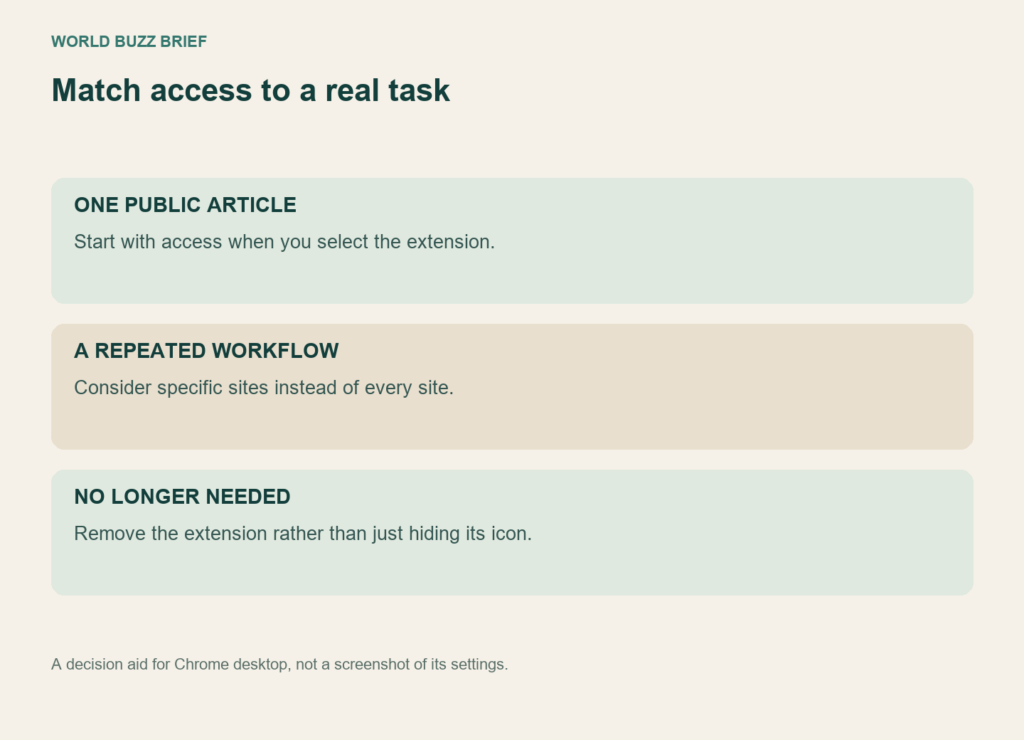
An AI sidebar that summarizes one article may ask to read and change data on many websites. That warning deserves a decision, but it does not prove the extension has stolen anything. Start with the job you want it to perform, then compare that job with the access requested. This guide concerns Chrome on a computer; other browsers and managed work devices may expose different controls.
Describe the task before accepting the permission
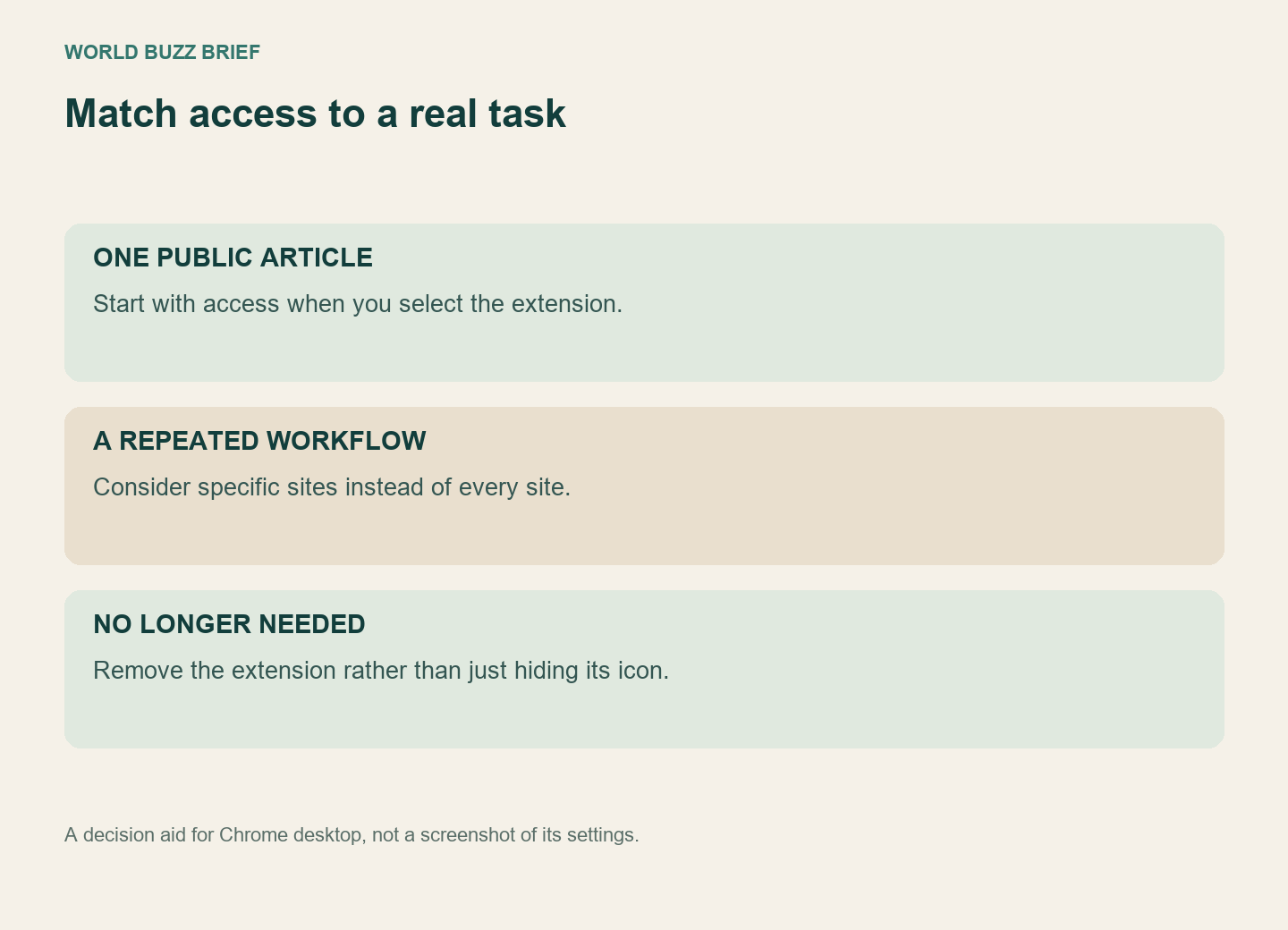
Suppose you want a summary of a public event announcement. That task is narrower than continuous assistance across your email, documents and every tab you visit. Ask whether you need a tool that acts after a click or one that operates automatically throughout the browser. The wider workflow might be intentional, but it should not be accepted merely because the install button is convenient.
Chrome’s developer documentation describes temporary access through activeTab as an alternative for many tasks that otherwise request persistent access. This does not mean you can rewrite an extension’s implementation from the settings screen. It explains why broad access is not the only possible design for a tool used occasionally.
Narrow site access, then test the feature you need
Open Chrome’s menu, choose Extensions, then Manage extensions and open the extension’s Details. Where site-access controls are available, choose access when selected or restrict it to specific sites. The exact labels may differ by version. Google’s management instructions describe these choices and the option to remove allowed sites.
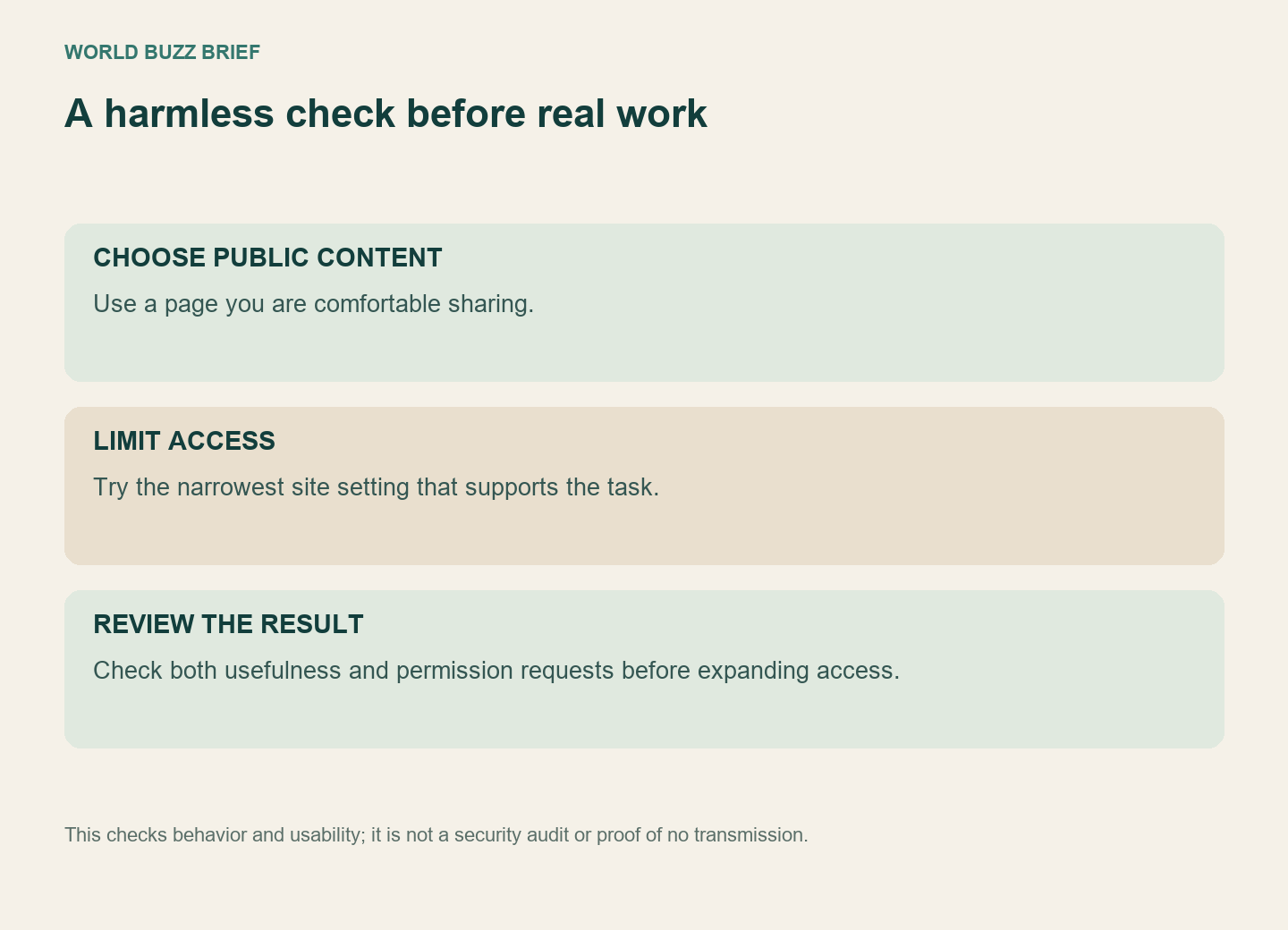
Try the feature on harmless public material before allowing it on a private page. If the feature stops working, note what it was trying to do and what permission it requests. Do not immediately restore access to everything just to clear the interruption. A specific-site exception might be sufficient; if the tool cannot perform your small task without much broader access, that is a reason to reconsider the tool.
Site access and data handling answer different questions
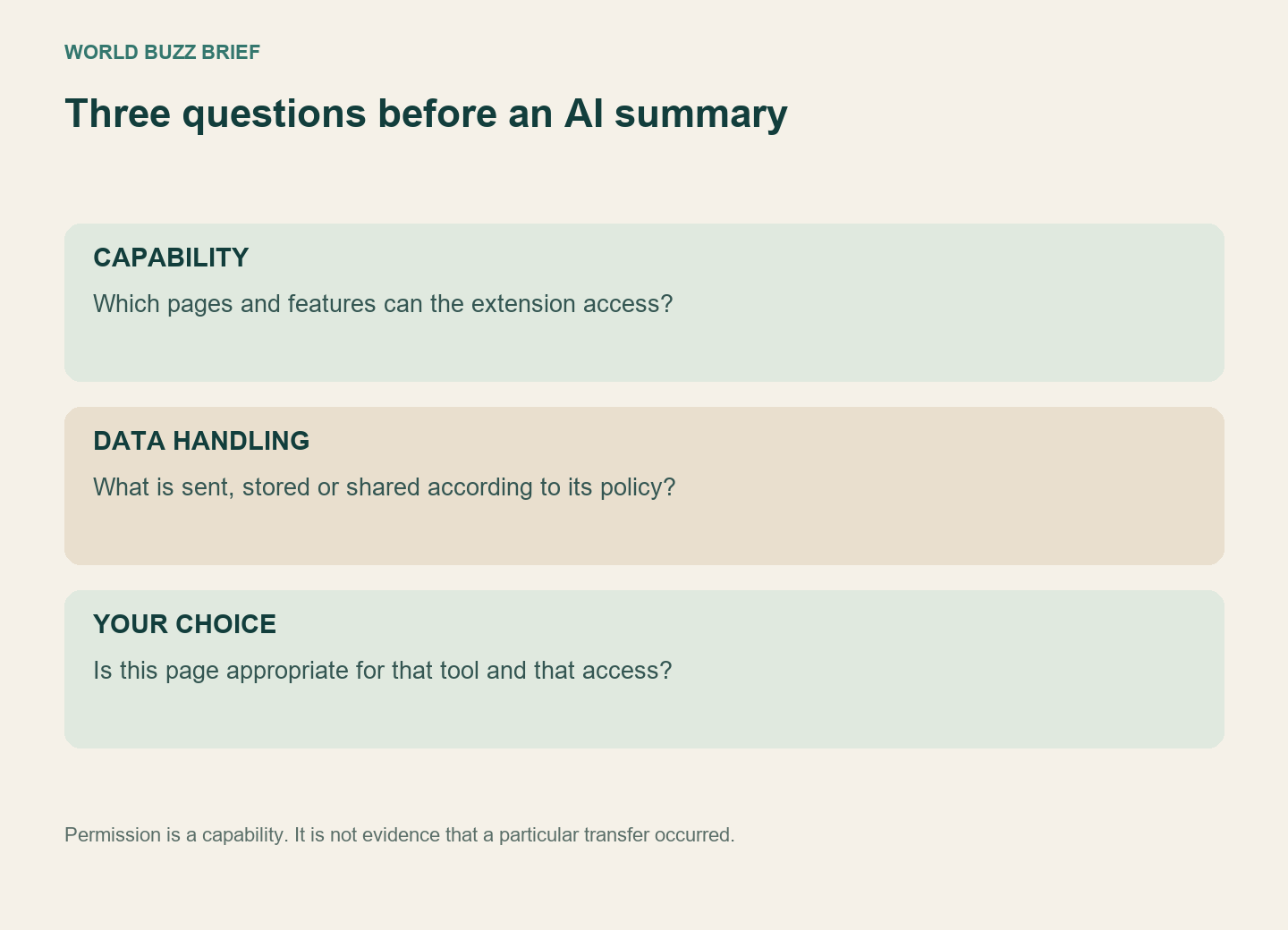
A permission is a capability. It does not tell you whether a particular page was transmitted, how long a service retains a summary, or which company processes it. Conversely, a reassuring description on a store page does not make a broad capability disappear. Review the extension’s privacy policy and the service behind it as well as the browser prompt.
Google’s user-data guidance requires disclosure even when an extension processes data locally. A privacy policy therefore does not, by itself, establish that the product sends information to a server. Read what it says about collection, use and sharing. If it does not answer the question relevant to a confidential document, choose a different workflow for that document.
Know what this setting does not settle
Website restrictions are not a universal switch for every extension capability. Chrome separates host permissions from other APIs, and its help page notes that lower-level VPN or proxy behavior is not governed by these site-access changes. An extension asking for unrelated capabilities still requires a separate decision.
Revisit that decision when an update requests new access. Google’s permission-warning documentation explains that a new permission can disable an extension until accepted. Treat the prompt as a changed request, rather than proof that the old approval covers everything. Finally, unpinning an icon only hides it: remove an extension you no longer use. None of these checks proves a product is secure, but they make the access you grant more deliberate and easier to review.