You turn off explicit content before a family car journey, then a favourite track disappears from playback. The setting has not necessarily failed. It may be doing exactly what it is meant to do: skipping the labelled recording.
That is different from finding an edited version. If you need a predictable selection, start with a short playlist you have actually checked instead of assuming a large playlist has become suitable automatically.
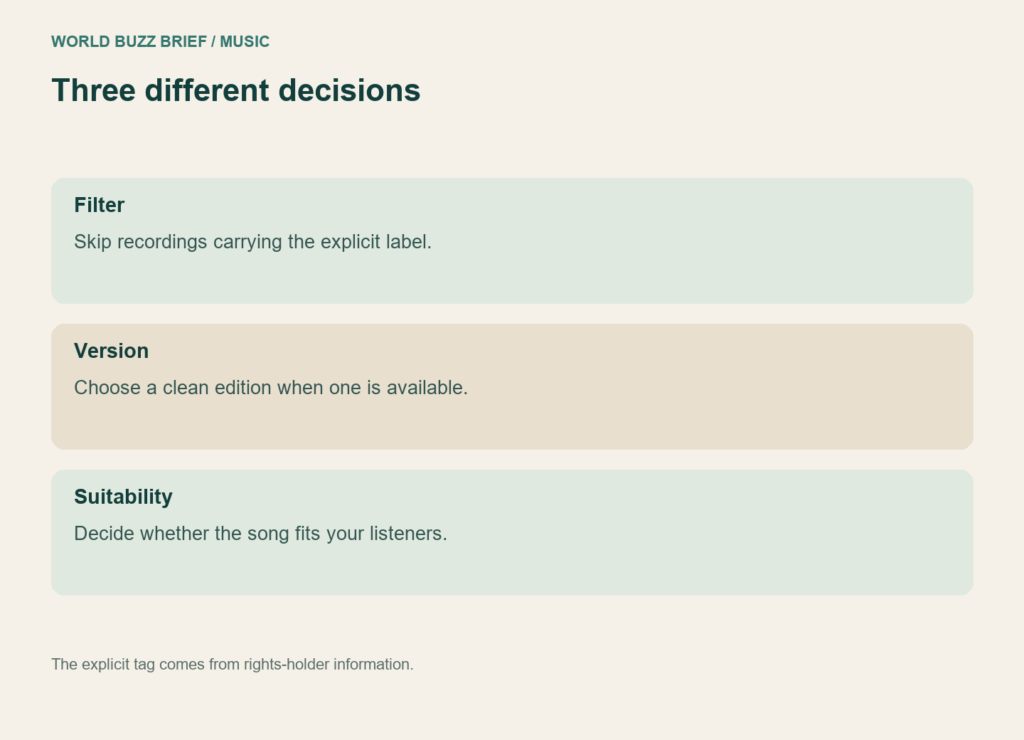
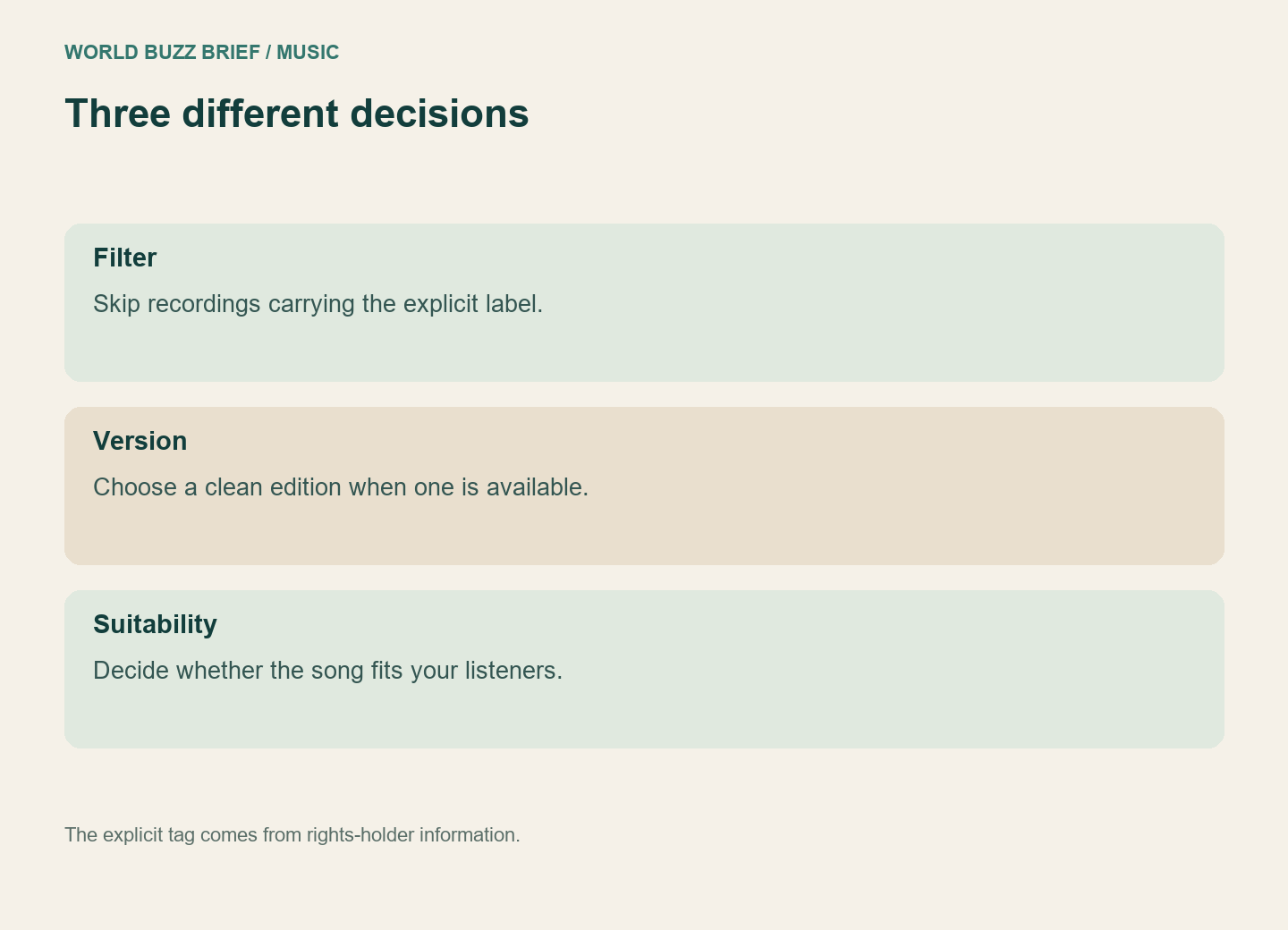
Filtering removes an option; it does not edit it
Spotify’s explicit-content guide says blocked, labelled tracks become unavailable and are skipped. Some releases have no clean edition. The E label is based on information supplied by rights-holders; it is not a personal review of whether every topic suits your listener.
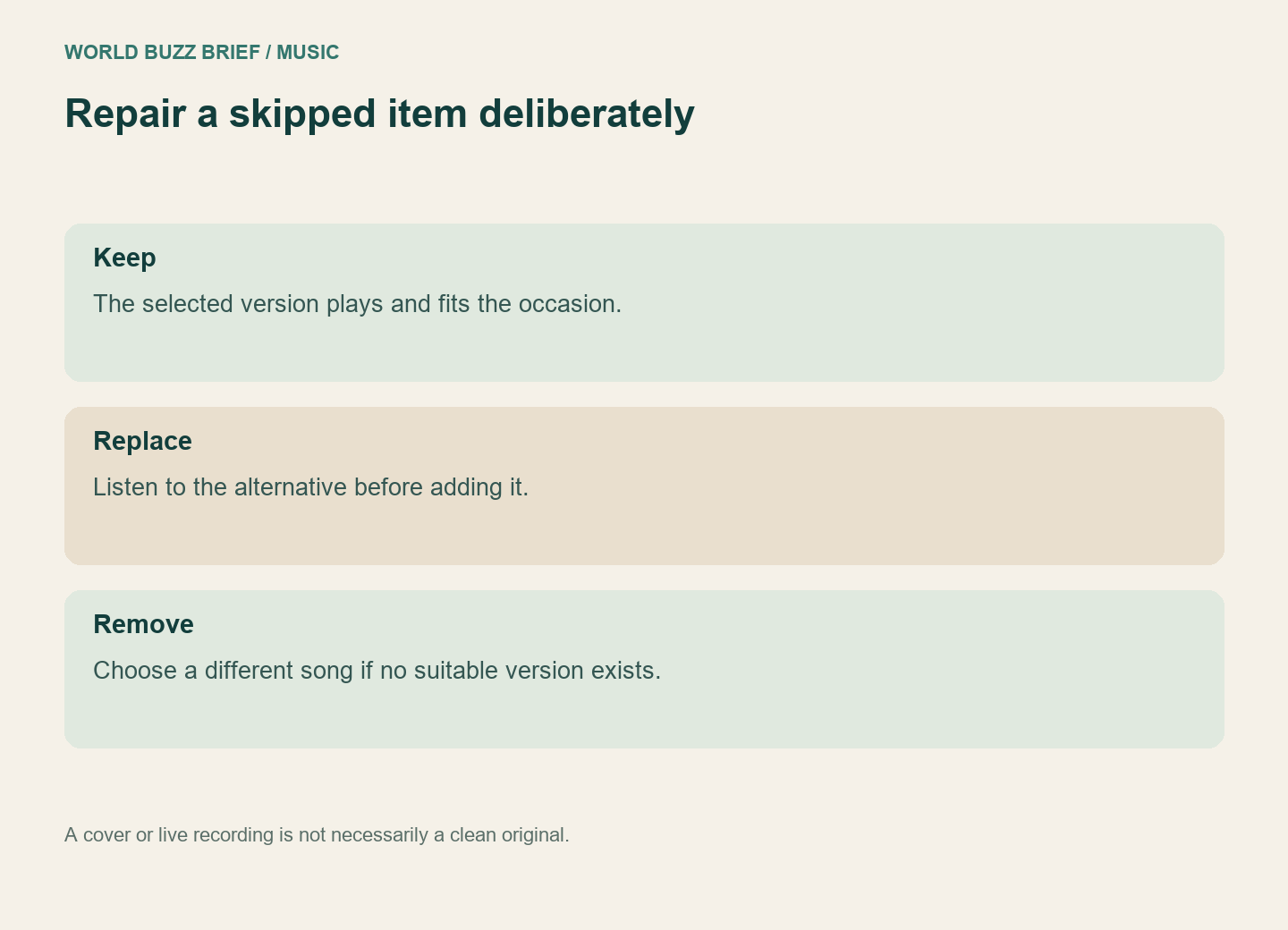
For an alternative, search the song title and artist. On desktop, an album’s other releases may appear below its track list. Compare the result before adding it: a cover, instrumental or live performance is not automatically the edited original you wanted.
Test a small selection on the actual playback setup
Try three or four songs first. Listen through them when you can give them attention, then keep only the versions you are happy to use. This is a suggested preparation step, not a claim that a short sample proves the rest of a catalogue suitable.
Imagine a ten-song list in which two entries are skipped. Replacing those two with the first search results could introduce a different singer or arrangement. A better repair is to inspect each replacement, add it deliberately and play the list again. If no suitable edition exists, choosing another song is simpler than trying to defeat the filter.
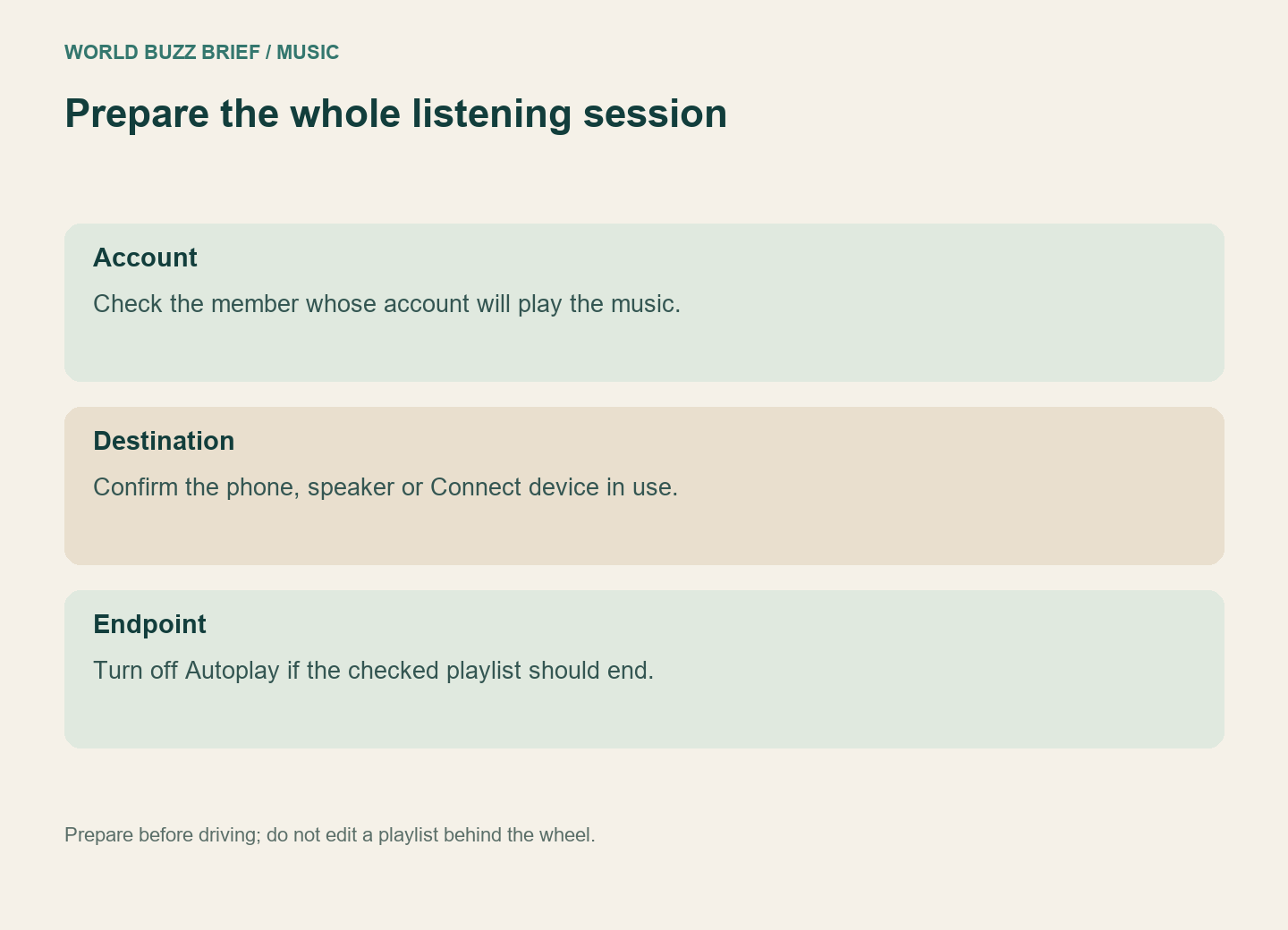
For Spotify Connect, setting changes apply from the next item played. Check the selected account and output device, then advance playback before deciding the filter is ineffective.
Look beyond the last track in the list
Autoplay adds similar music after an album or playlist ends. Turn it off if you want the session to finish with the selection you prepared. On mobile it is under Settings and privacy → Playback; desktop exposes it in Settings.
This does not make your selected songs inherently appropriate. It simply makes the endpoint easier to understand. For a planned journey, also leave enough music for delays so nobody has to rebuild the list while driving.
Keep account controls and editorial choices separate
A Premium Family manager can control explicit-content permission for other plan members. That control and your own track-by-track choices do different jobs. Check the relevant member’s account rather than assuming a setting on your phone describes every account in the family.
Save the finished list with a name that tells you what you checked, such as a particular journey or family occasion. Avoid calling it universally “safe”: suitability can change with the listener, even when the recording does not.