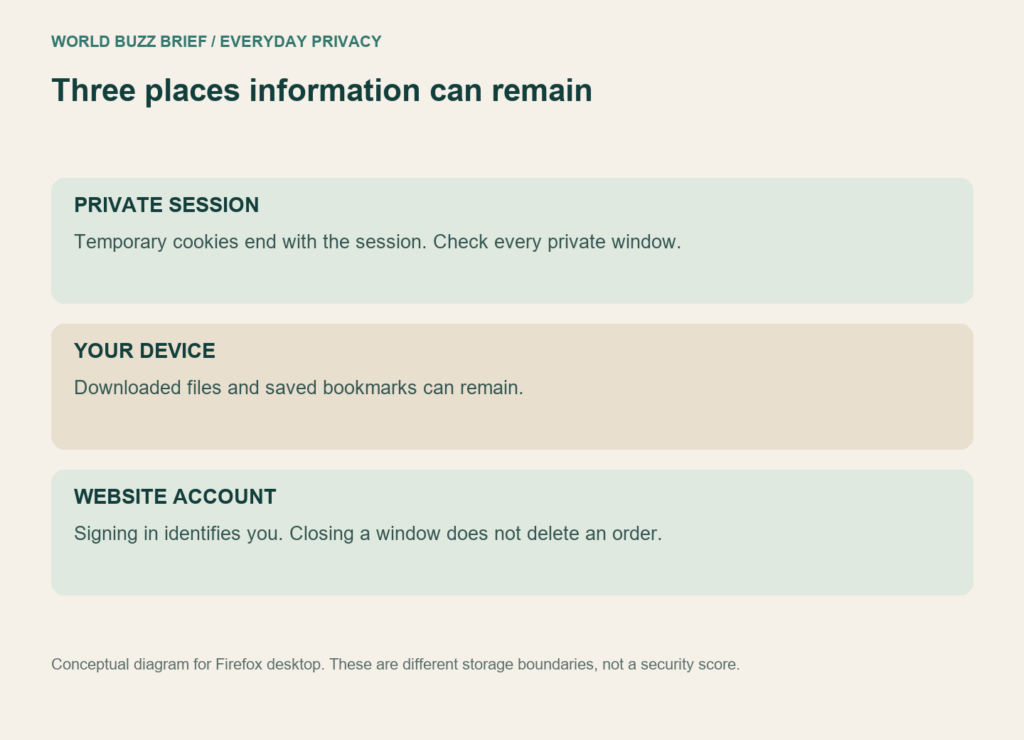
You close a private window after signing into a shop, then find the downloaded receipt in your Downloads folder. Nothing has necessarily malfunctioned. The browser session, the file on your computer and the shop’s account record are three different things. Firefox can clean up the first without erasing the other two.
The useful question is therefore specific: what do you want to keep out of ordinary browser history, and what do you expect to disappear? This guide concerns Firefox on desktop, checked against Mozilla’s documentation on October 3, 2026. Other browsers and managed devices can behave differently.
1. End the session, not just the tab
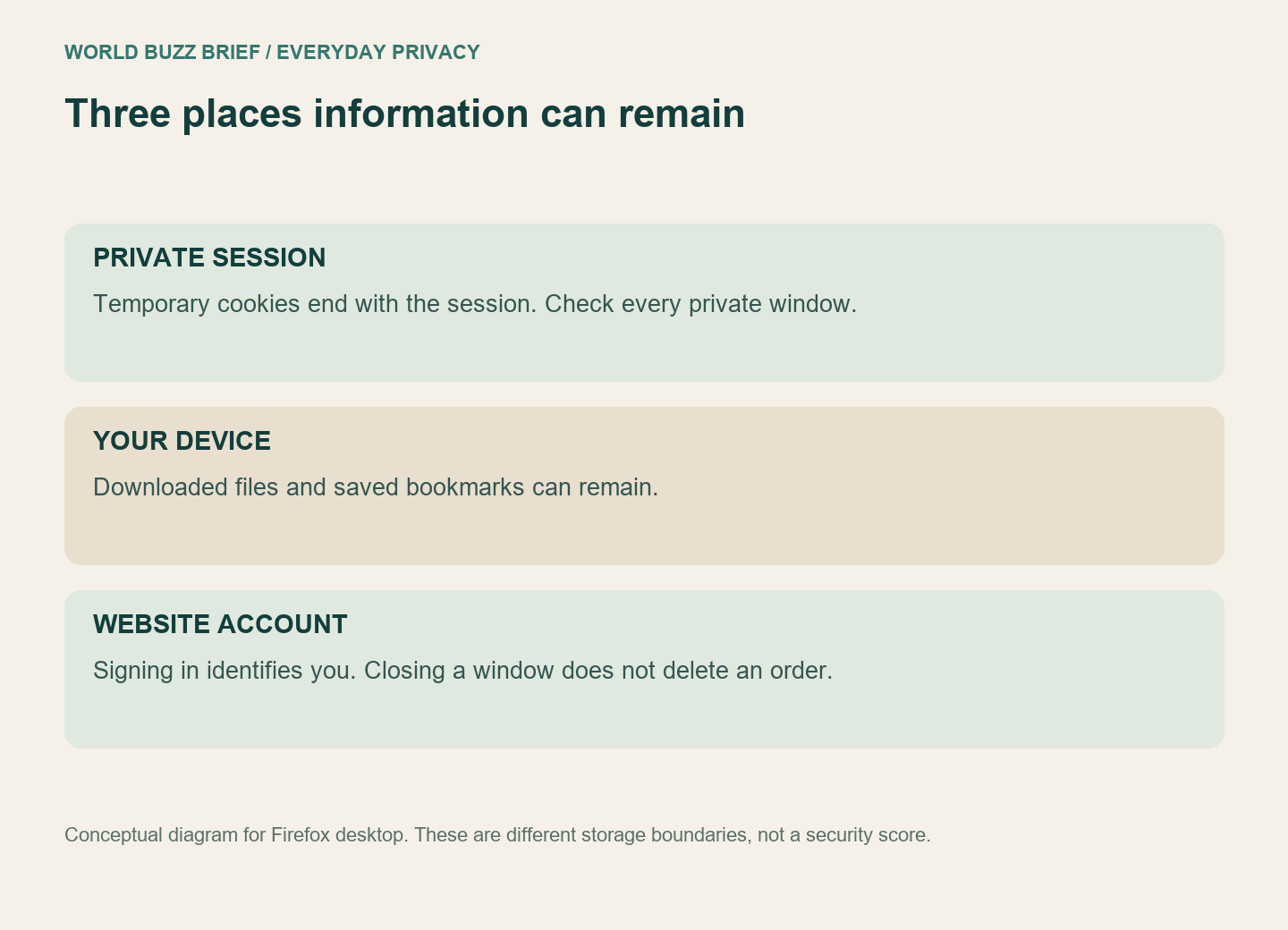
Mozilla’s Private Browsing guide distinguishes temporary private-session cookies from normal-window cookies. Closing the last private window ends that session and discards those temporary cookies. Closing one tab while another private window remains open is not the same boundary. Check for other private windows before assuming the session has ended.
A downloaded receipt, a saved bookmark or a password you choose to save can remain. Clearing the session does not inspect your Downloads folder and remove the files you deliberately put there. Before using a shared computer, decide whether you need to download anything at all. If you do, treat the file as a separate object to manage, rather than assuming the browser’s closing animation is a cleanup report.
2. Signing in still tells the website who you are
Imagine opening a private window to compare flights while logged into an airline account. The temporary browser state may be separate from your normal session, but you have explicitly supplied the airline with an identity. Orders, messages and account activity do not become anonymous just because the window has a mask icon.
Mozilla’s explanation of private-window limits makes this distinction clear: private browsing is not online anonymity and does not hide your IP address. It also does not make an employer-controlled computer or network private from its administrator. That is a reason to choose an appropriate device for personal activity, not to regard a private window as permission to bypass workplace rules.
3. Tracking protection answers a different question
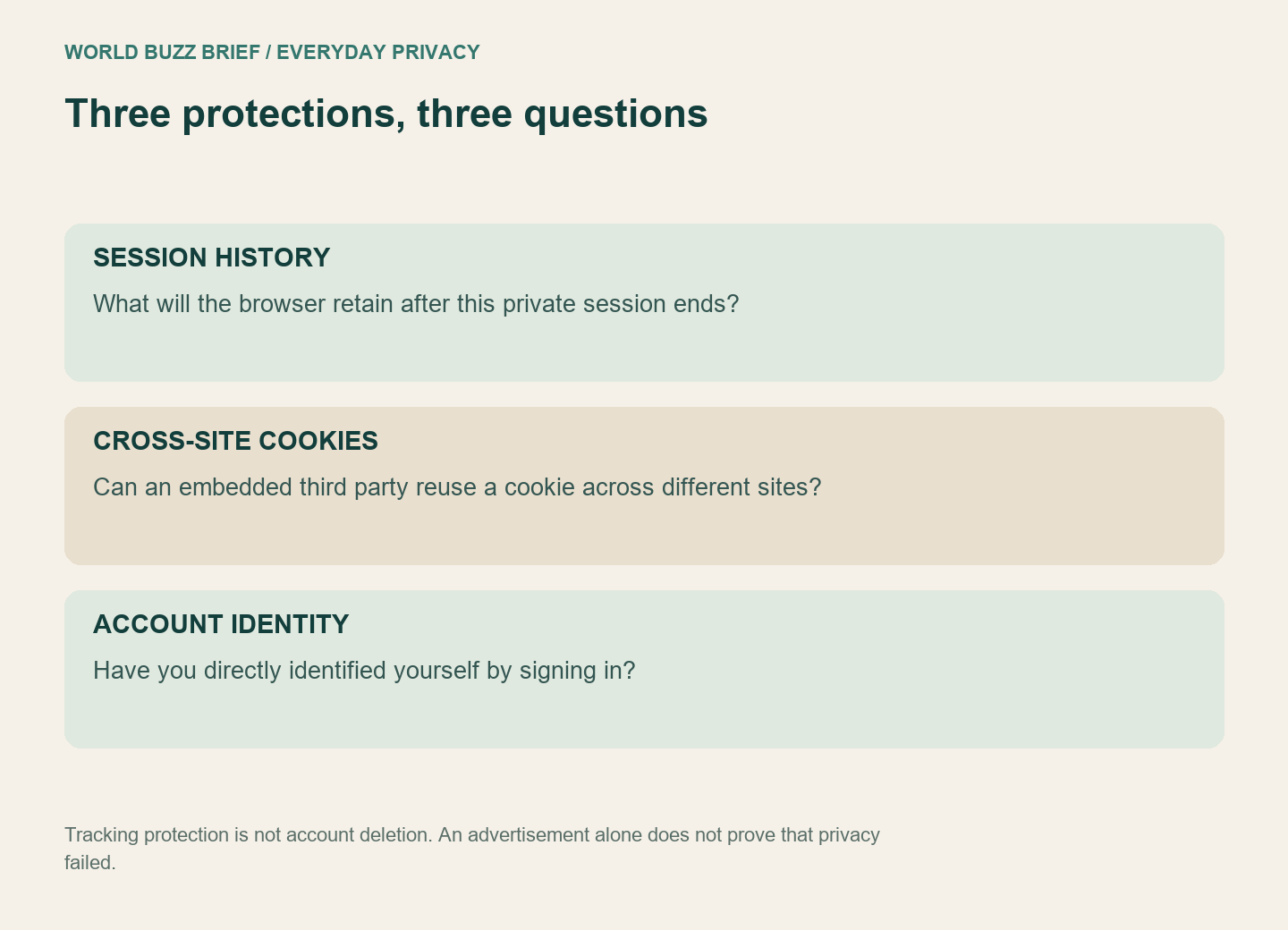
Firefox’s Total Cookie Protection separates cookies into site-specific storage, limiting how an embedded third party can join your activity across sites. It is also available in normal browsing; it is not a special eraser that exists only in private windows. Think of it as restricting which site can reuse a cookie, rather than deleting your relationship with every site.
Enhanced Tracking Protection provides another useful distinction: blocking tracking resources is not identical to blocking every advertisement. Seeing an ad is not, on its own, evidence that private browsing failed. A publisher can display an ad chosen for the page rather than your personal history. Conversely, an absence of ads does not prove that a signed-in website has forgotten your account.
4. Use a harmless test before trusting the boundary
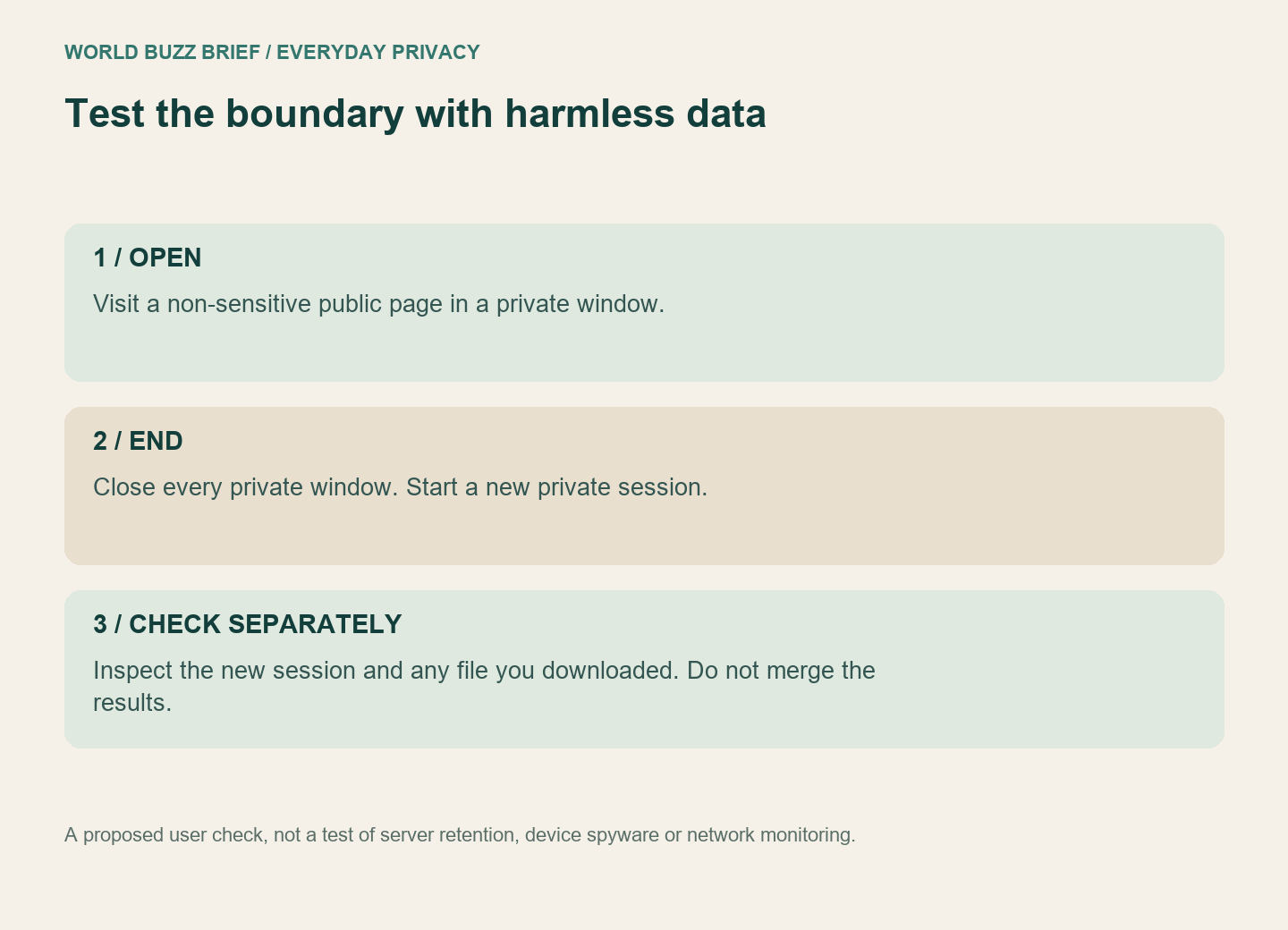
Try this with a non-sensitive public page you have not previously visited: open it in a private window, note the address, then close every private window. Inspect normal browser history for that visit. Separately inspect any harmless file you downloaded. The expected distinction is that the private visit was not added to history, while the downloaded file remains. This checks two observable outcomes without using a real confidential document.
If your goal is to remove a site’s data from normal browsing, use Firefox’s site-data controls for that site. Expect that clearing its cookies may sign you out or remove preferences. It still does not cancel an order or delete the account on the website. For those changes, use the website’s own controls.
Before leaving a shared device, check the session, any saved files and any account action you actually made. Those three checks are more informative than asking whether private mode is simply “on.”