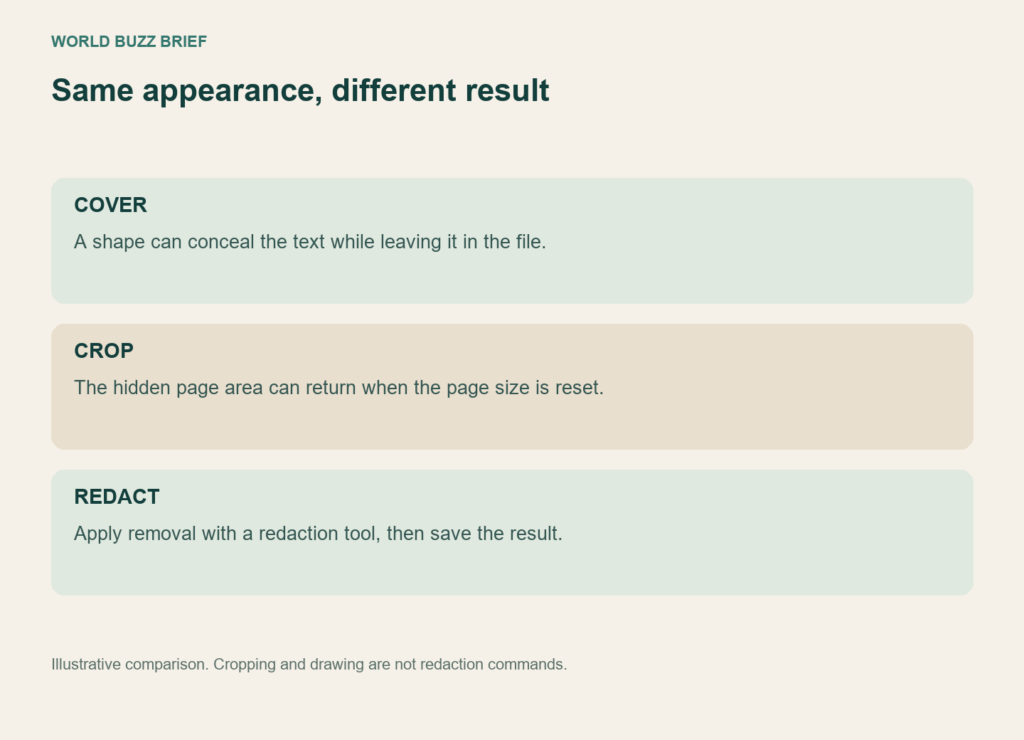
You cover an address with a black box, save the PDF and reopen it. The address is invisible. Is the document ready to send? The appearance alone cannot answer that: a shape placed over text may hide what you see without removing the underlying information.
Before sharing a form, invoice or application, treat three jobs separately: remove the visible information you intend to withhold, remove unwanted hidden information, and verify the exact file you are sending. A clean-looking preview is only the beginning.
Covering, cropping and redacting do different jobs
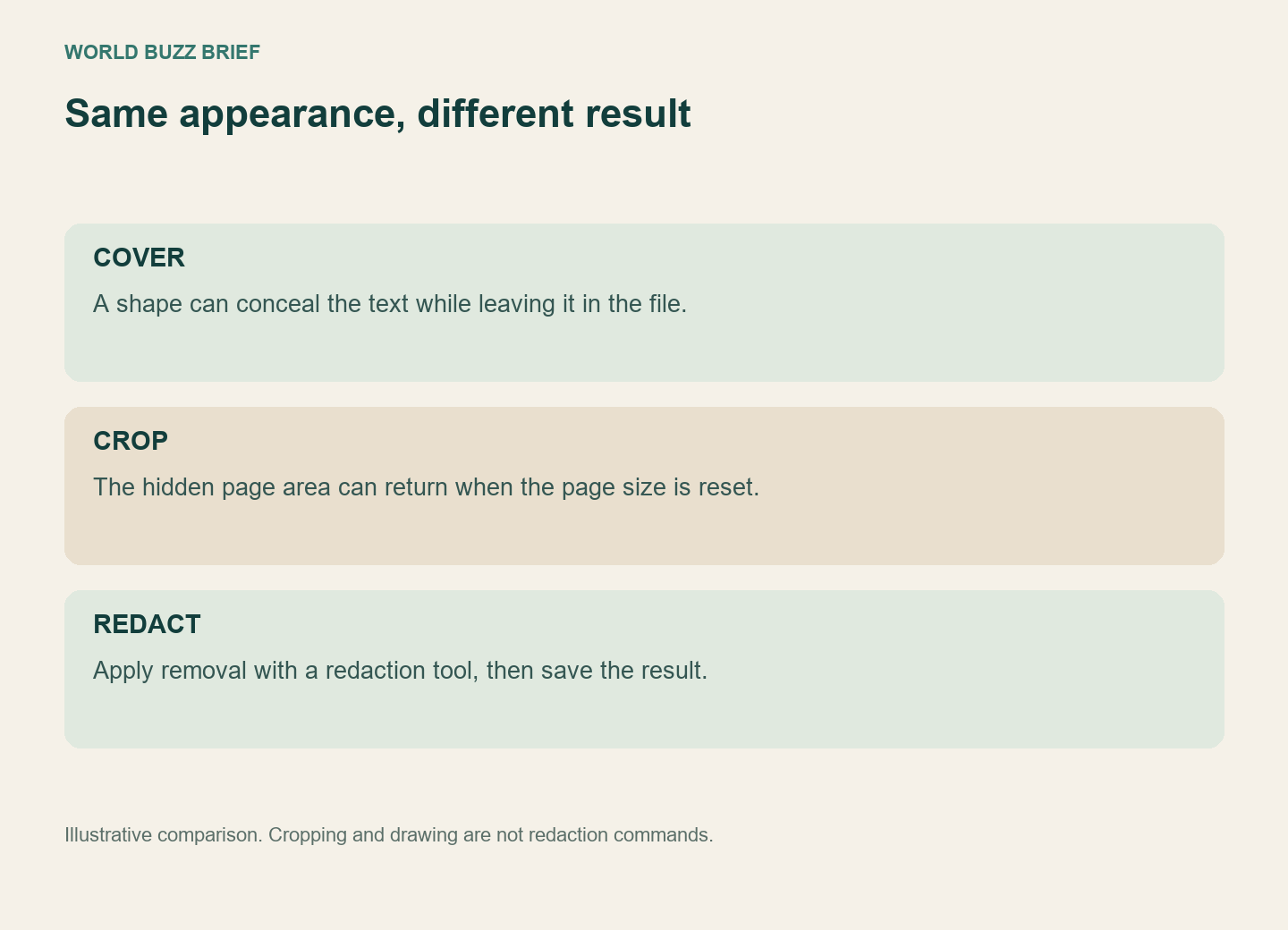
A drawing annotation is not a redaction command. If you used a rectangle tool, do not infer that the content beneath it was deleted. Cropping is another tempting shortcut when an address sits at the page edge. Adobe’s cropping documentation explicitly says that cropped content is hidden and can return when the page size is reset.
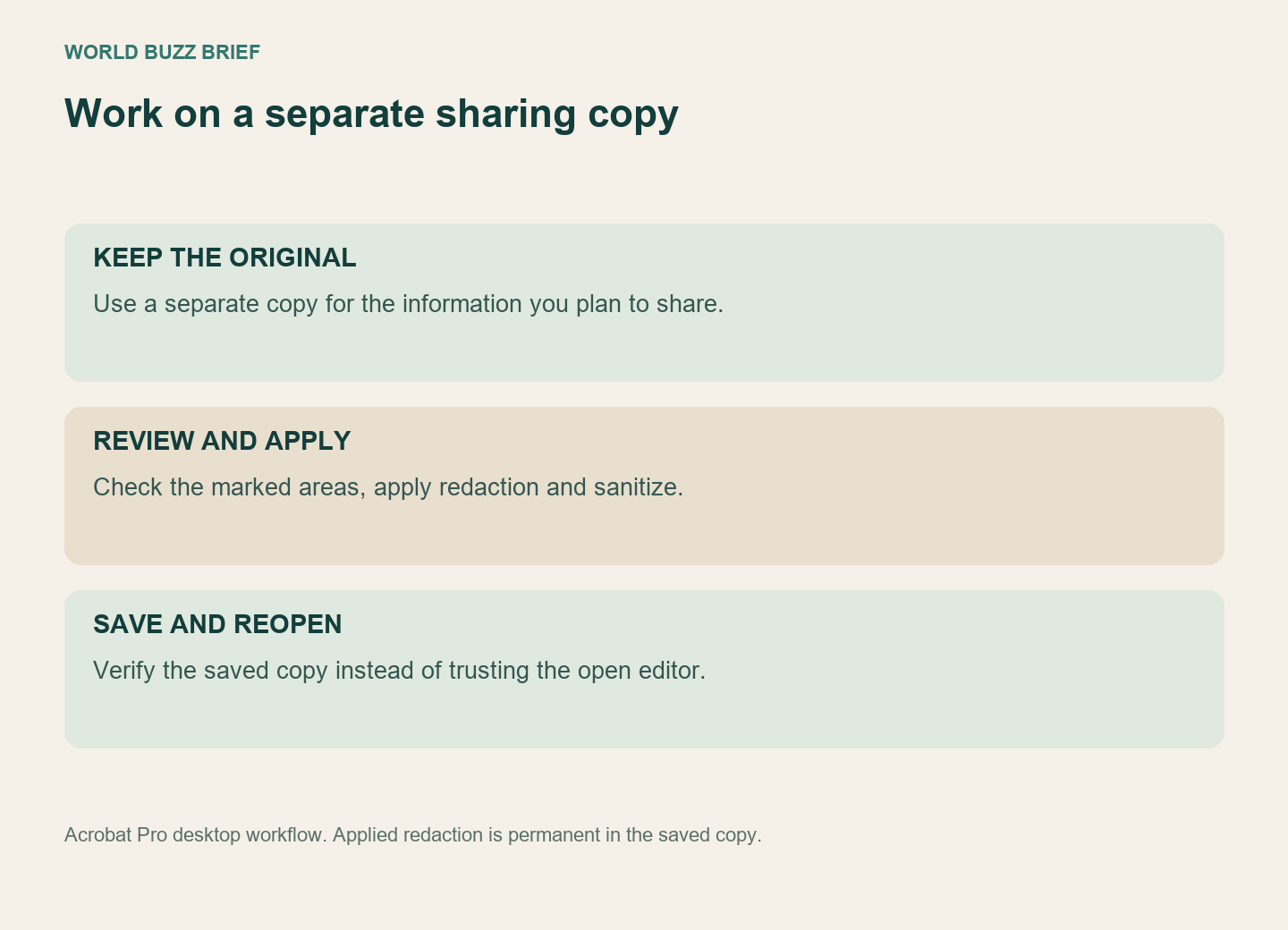
Use a tool that actually applies redaction. Keep the original in a separate, appropriate location and work on a sharing copy. The aim is not merely a black rectangle; it is a saved file whose selected content has been removed. The steps below are for Acrobat Pro on desktop, not a promise that a free viewer includes the same functions.
Marking a passage is not the final operation
In Acrobat Pro, open All tools, then Redact a PDF. Select the text or image with the redaction tool, review the marked areas, and apply the redactions. The documented workflow then offers hidden-information sanitization and saves the resulting document. Stop and review before applying: the purpose of this operation is permanent removal from that saved copy.
For repeated information, search as well as looking page by page. A name can occur in a heading, an appendix and a scanned attachment. Acrobat’s find-and-redact tool supports phrases and patterns, but you still choose the results to mark and apply. A search that finds nothing is not proof that a photographed or differently spelled occurrence is absent.
Check what the page does not show
A PDF can include comments, metadata, attachments and other non-visible material. Imagine removing a customer’s name from the page while leaving a comment that says why that same customer’s details were changed. The visible edit has not answered the hidden-information question.
Adobe treats sanitization as a separate operation. Review the hidden-information options and save the sanitized result. Check what you removed and what you still need the recipient to use; do not discover after sending that an essential attachment or feature disappeared. This is a review of your sharing copy, not an instruction to destroy the only original.
Verify the attachment, not the editor window
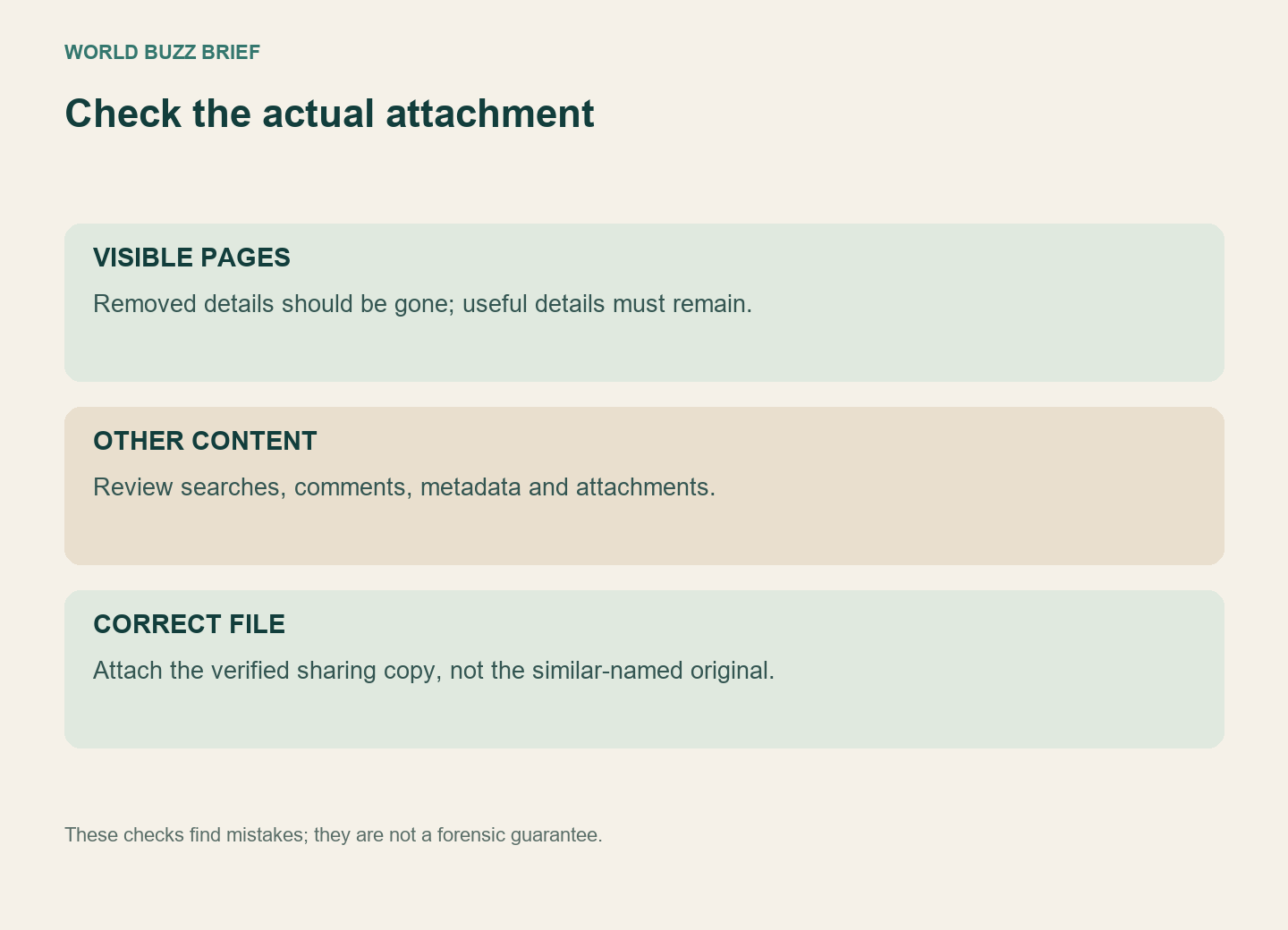
Close the working document and reopen the saved sharing copy. Inspect every page, try searching for the removed phrases and check whether copying text from the surrounding passage exposes something unexpected. Look at the attachments and document properties too. These are useful failure checks, but a simple text search cannot certify that a file contains no sensitive data.
For example, if an address must be withheld but a delivery date must remain, verify both results. Removing the address successfully is not helpful if the recipient can no longer tell which delivery the file describes. Review what remains useful, not just what has disappeared.
Finally, select that verified copy in the upload or email attachment picker. Similar filenames are an easy way to undo careful work. For a genuinely sensitive document, use your organisation’s approved handling process and second-person review rather than relying on a quick visual check or sending it to an unfamiliar online converter.