An app you rarely open can be important precisely when you need it again. If reminders or background activity have stopped, inspect Android's unused-app handling before reinstalling or granting every permission. The aim is to restore the specific function you need while keeping unrelated access limited.
See whether Android classified the app as unused
Google documents that unused-app optimization can revoke permissions, stop background activity and notifications, and remove temporary files. Open the device's app settings and look for the unused-app area. Labels and navigation differ across manufacturers and Android versions, so inspect the setting associated with the particular app.
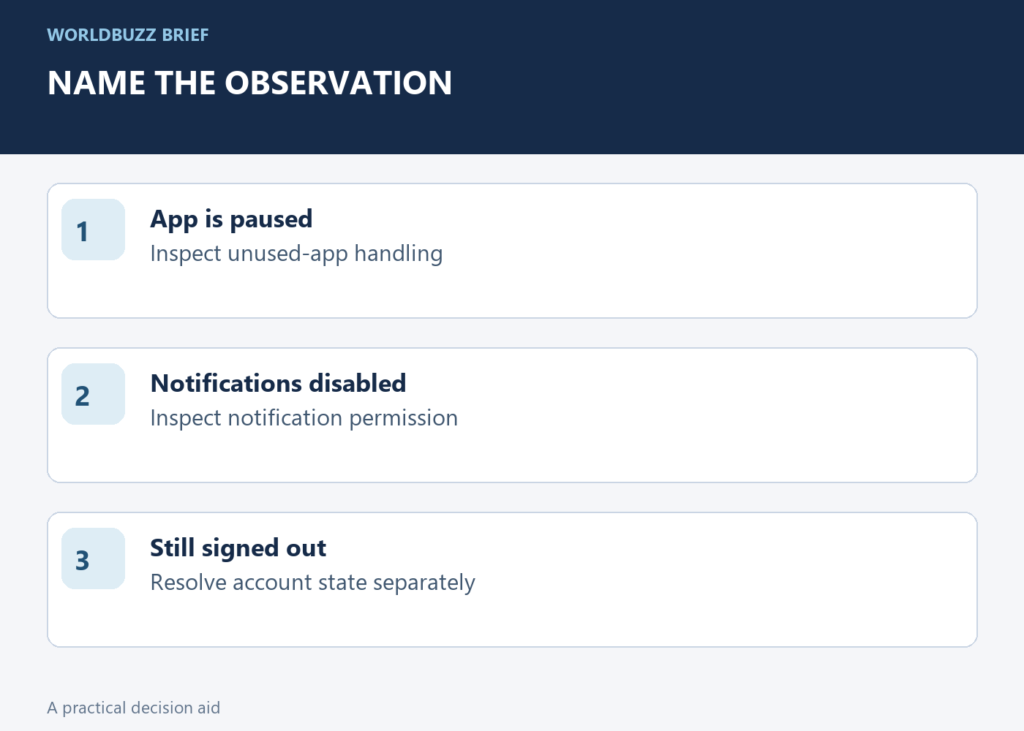
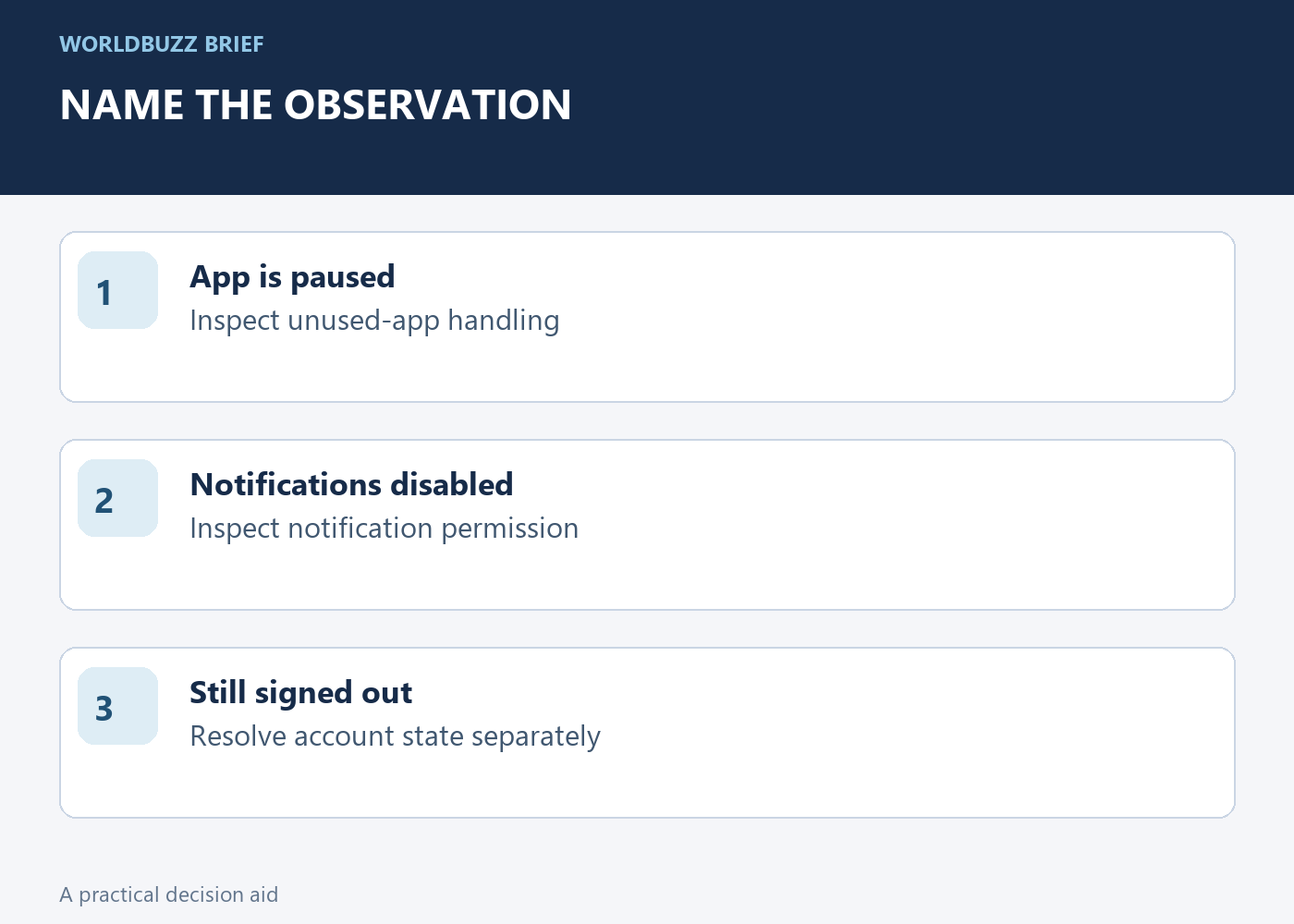
Record what you find before changing it. 'Notifications are disabled' and 'the app is paused as unused' are different observations, even if the visible symptom is the same. Also confirm that you are inspecting the correct app and profile. A similarly named work-profile application may have separate settings from the personal copy you usually open.
Restore only the capability you expect to use
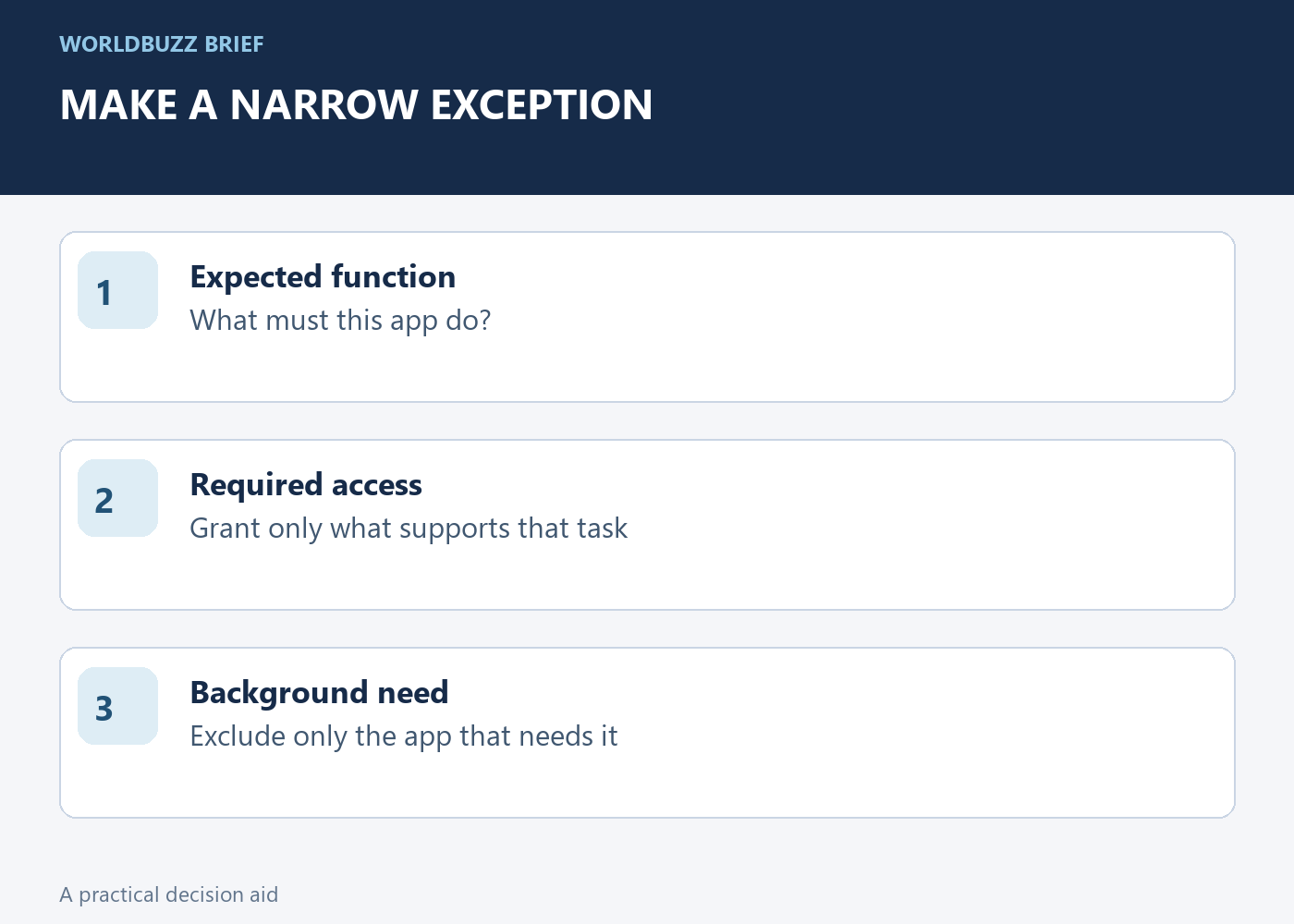
Open the app and test the function that matters. If it requests a permission again, consider why that permission is needed for the task. A calendar-related feature, camera capture and location-based alert do not require the same access. Avoid accepting every request simply because the app had stopped working.
If the app must remain active despite infrequent use, Google's documented setting allows you to turn off Pause app activity if unused for that app. Make this an intentional exception. A rarely used shopping app and a service you depend on for a particular reminder do not automatically deserve identical treatment. Keep the exception narrow enough that you can remember why it exists.
Check the other causes instead of blaming one setting
Unused-app handling is one possible explanation, not proof of the cause. Notification permission, in-app preferences, battery restrictions, account sign-in and network conditions can also affect the result. Test one change at a time where practical so you can tell which adjustment mattered.
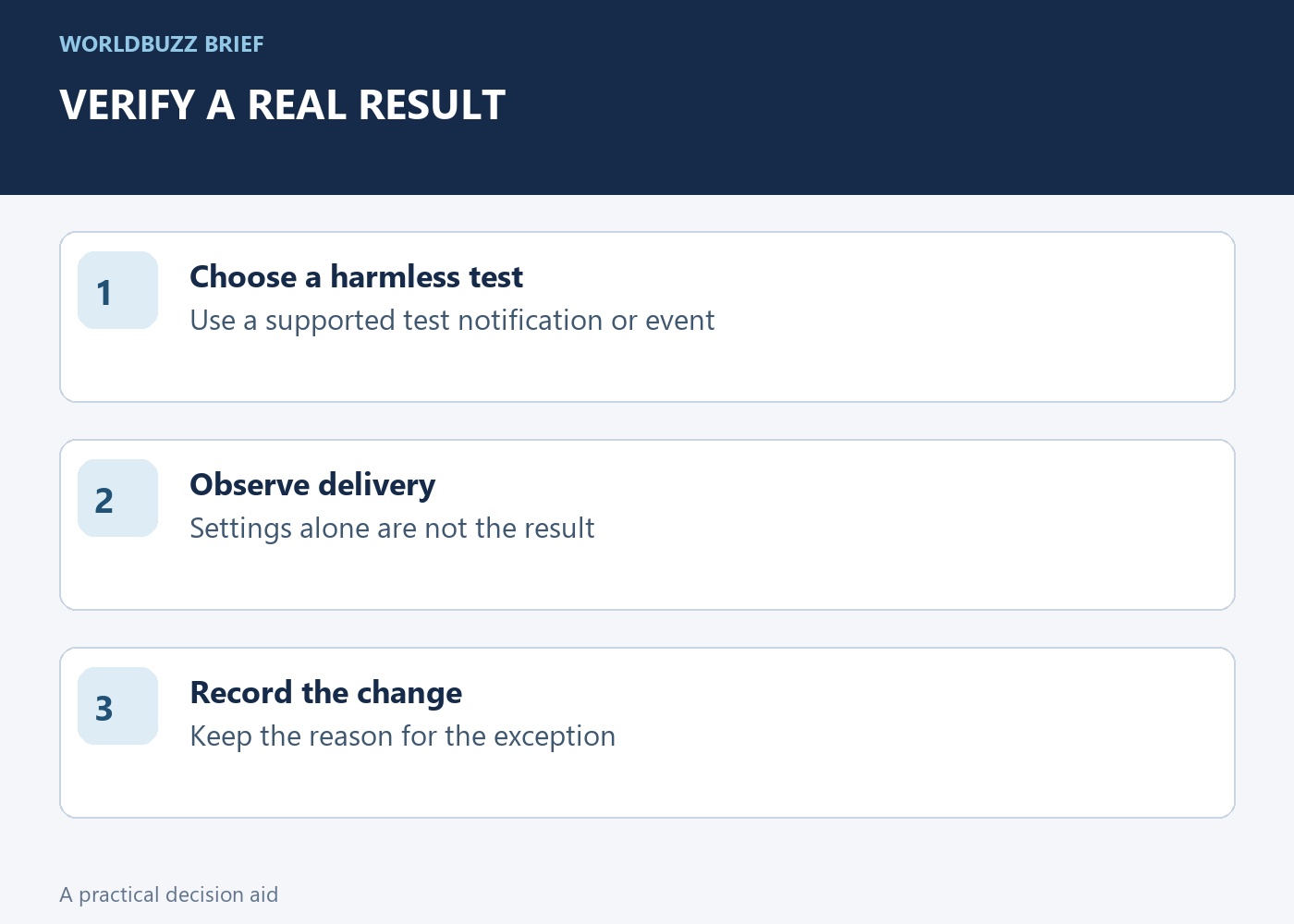
For example, trigger a harmless test notification using the app's supported test feature if it has one. If no test exists, use a low-stakes event whose delivery you can observe. Do not rely on an untested change for an urgent or safety-critical reminder. A settings screen that looks correct is not the same as a notification arriving under the conditions you need.
Keep a small exception list
After the test, note the app, the function restored and the setting changed. Revisit exceptions when you stop using the service or replace the device. This prevents a temporary troubleshooting change from becoming an unexplained permanent permission grant across many applications.
If the app still fails, gather its version, Android version and the exact symptom for its support channel. Avoid reinstalling repeatedly without knowing whether the issue is permissions, account state or the app itself. The useful outcome is a reproducible function with an understood exception, not a phone with every optimization disabled just in case one of them was responsible.