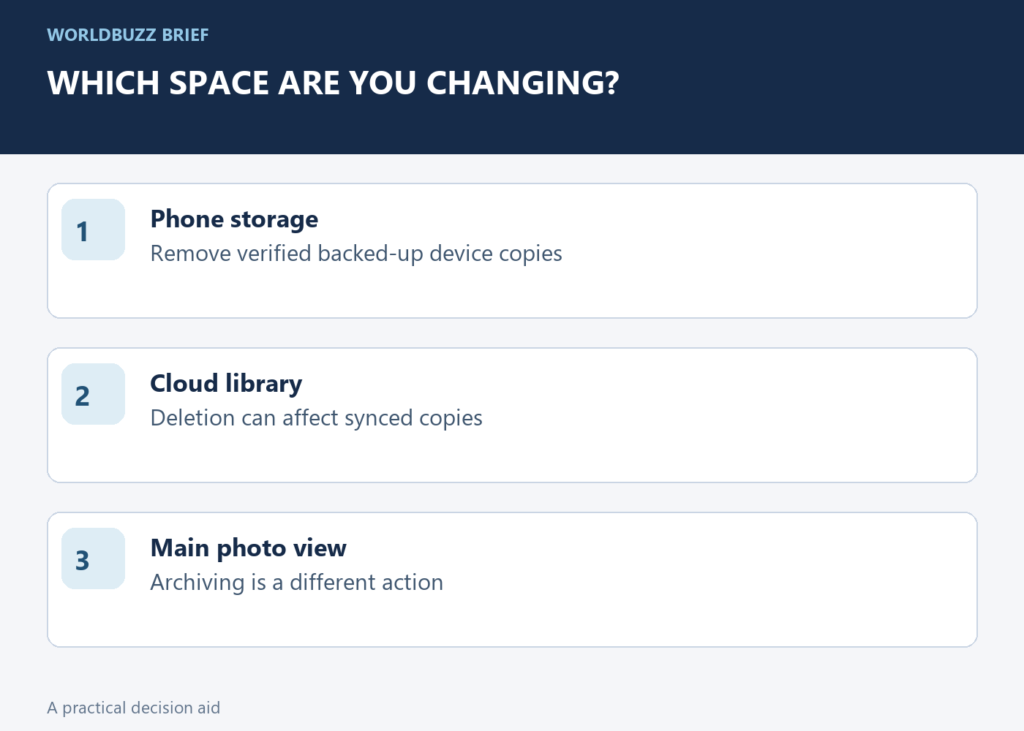
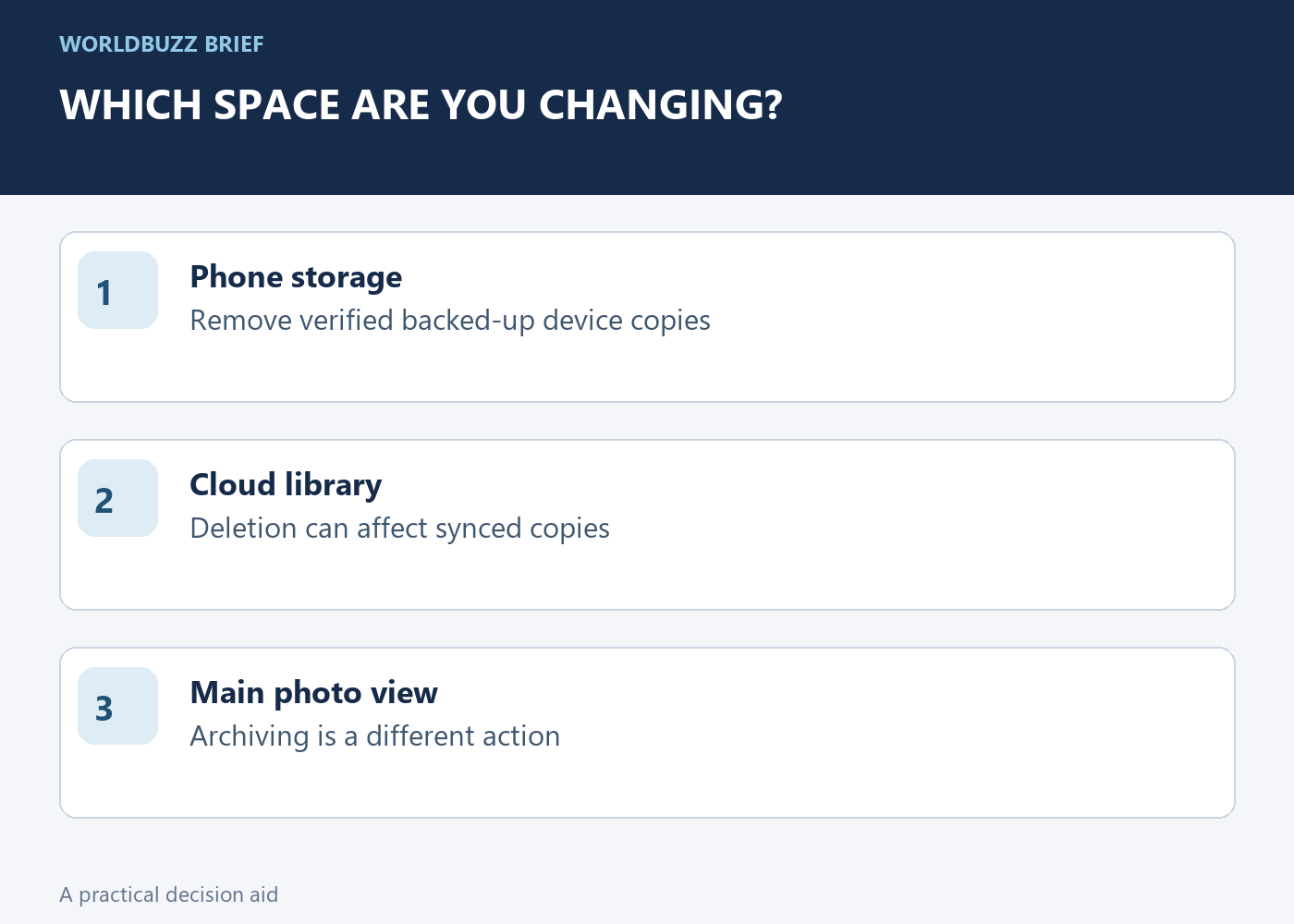
If your phone is full but you want to keep your photographs, pause before pressing the trash button. Removing a backed-up device copy and deleting a photo from Google Photos are different operations. Begin with the outcome you want: less device storage, less cloud storage or a tidier library.
Verify backup before removing a local copy
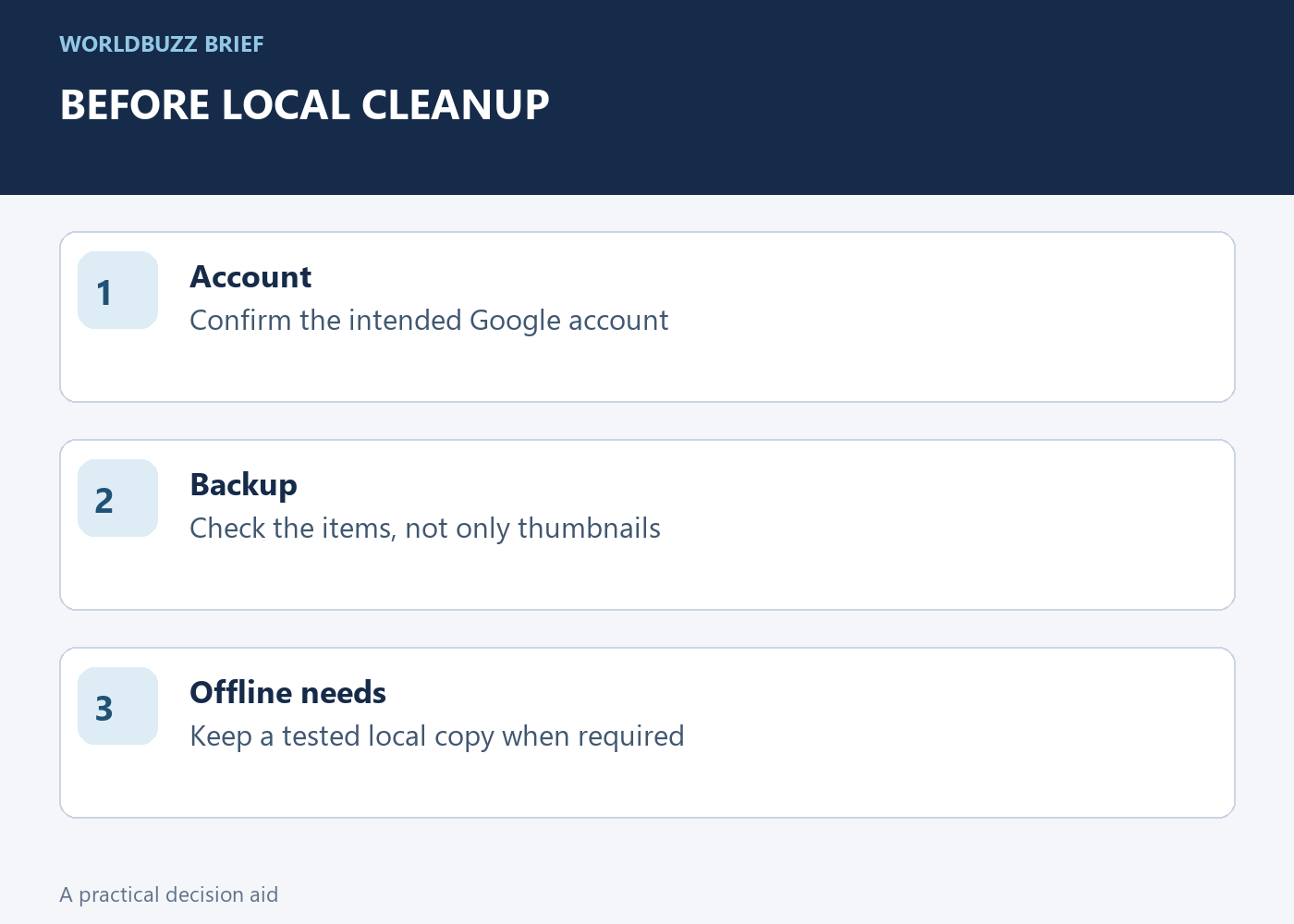
Check the account shown in Google Photos and the backup state of the photographs you intend to remove from the device. A thumbnail in the app is not by itself proof that the original has finished uploading to the account you will use later. Open an important sample through the intended account on another device or on the web.
Use a few representative items: a recent photograph, an older one and a video. This is a practical verification sample, not a guarantee for every file. If backup is incomplete or the account is uncertain, resolve that first. Irreplaceable photographs also deserve an independent backup rather than depending on one account and one assumption.
Choose the operation that matches your goal
Google Photos offers Free up space to remove device copies that it identifies as safely backed up. The photographs remain available in Google Photos, but device-only gallery access and offline availability can change. Read the confirmation before proceeding and make sure it describes removing device copies rather than deleting the library items.
Deleting through Google Photos can remove items from the backed-up library and synchronized devices. It is not a substitute for a phone-storage cleanup. Likewise, archiving changes how items appear in the main view; it is not the same as freeing substantial storage. Choose by the stated effect, not by whichever button looks like a general cleanup tool.
Keep the photographs you need without a connection
Before a trip, think about what must remain available when the network is unavailable. A cloud copy you can usually stream is different from an original stored on the phone. Important tickets, reference images or family photographs you intend to show offline need their own availability check.
After a small cleanup, test the workflow you actually use. Open the regular gallery app, then Google Photos, and note the difference. Try an intentionally downloaded sample without a connection if offline access matters. This makes the change understandable before you remove thousands of local copies at once. Avoid discovering the distinction only after leaving reliable connectivity.
Check the result before doing another cleanup
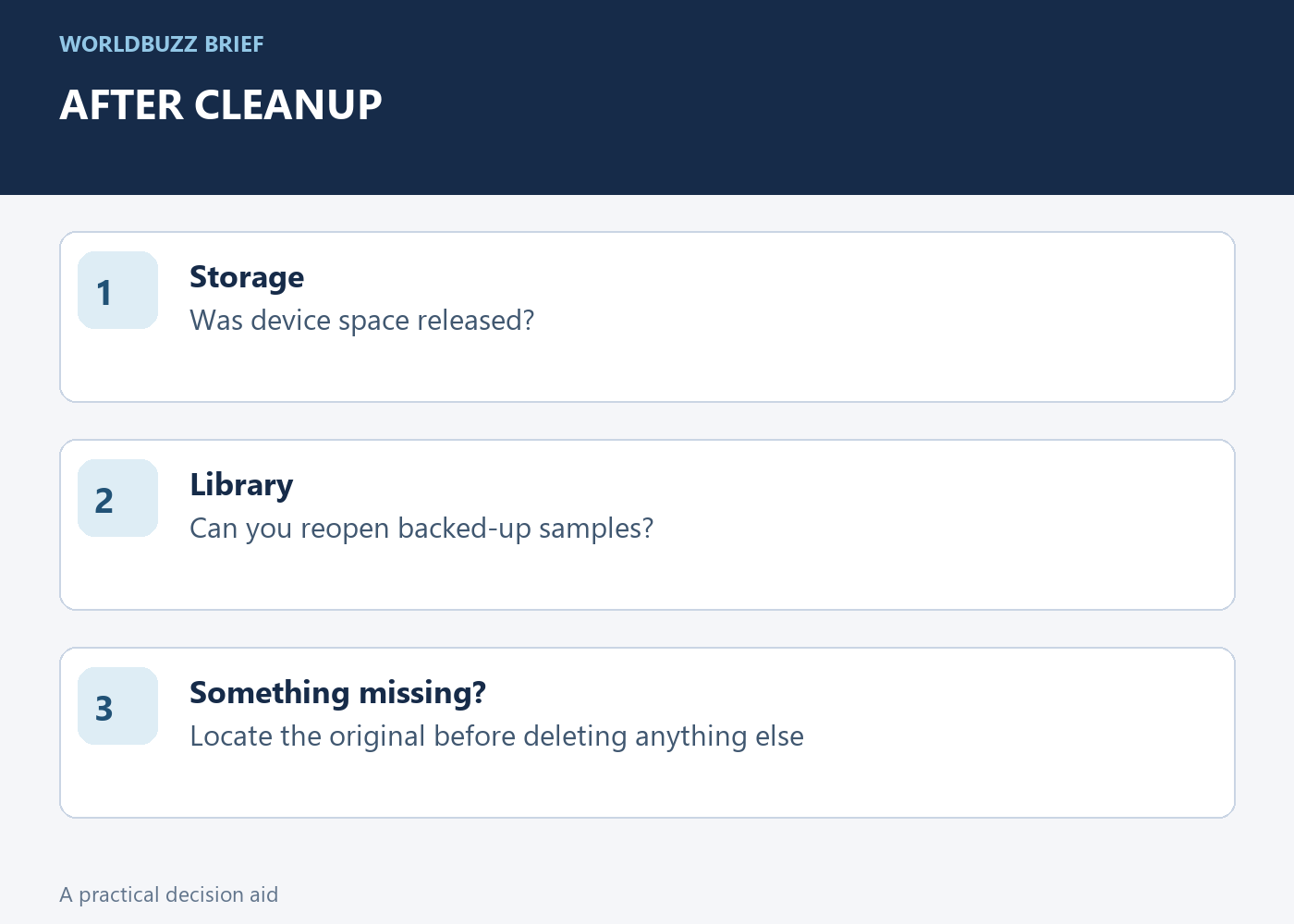
Review the phone's storage and reopen several backed-up items. A successful result means local space was released while the intended cloud library remains accessible. Do not respond to a missing local-gallery thumbnail by deleting more items or emptying trash; first establish where the original is stored.
If something was deleted unintentionally, use Google's recovery instructions promptly and inspect the available trash state. Recovery is limited and should not be treated as a permanent safety net. For the next cleanup, write the goal in plain language: 'remove backed-up phone copies, keep the cloud library.' That sentence is a better guide than the vague instruction to 'clear photos.'