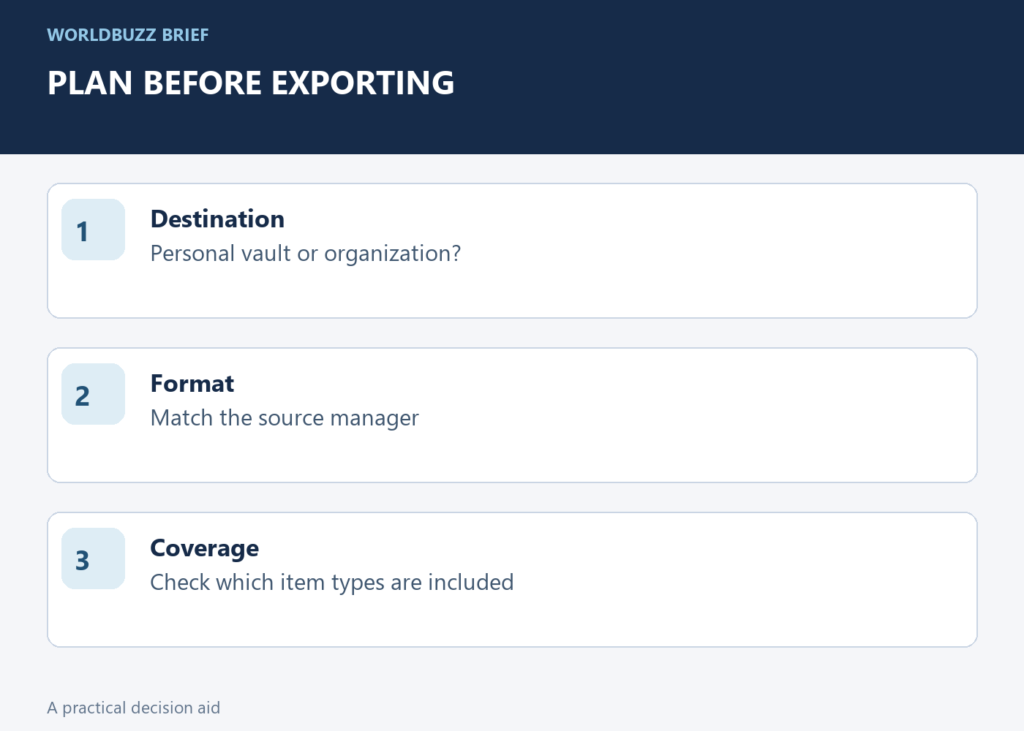
A password export can help move accounts to a new manager, but a plain CSV is not protected like a locked vault. Plan where the file will go, how you will verify the import and how you will remove temporary copies before pressing Export.
Confirm the destination and format first
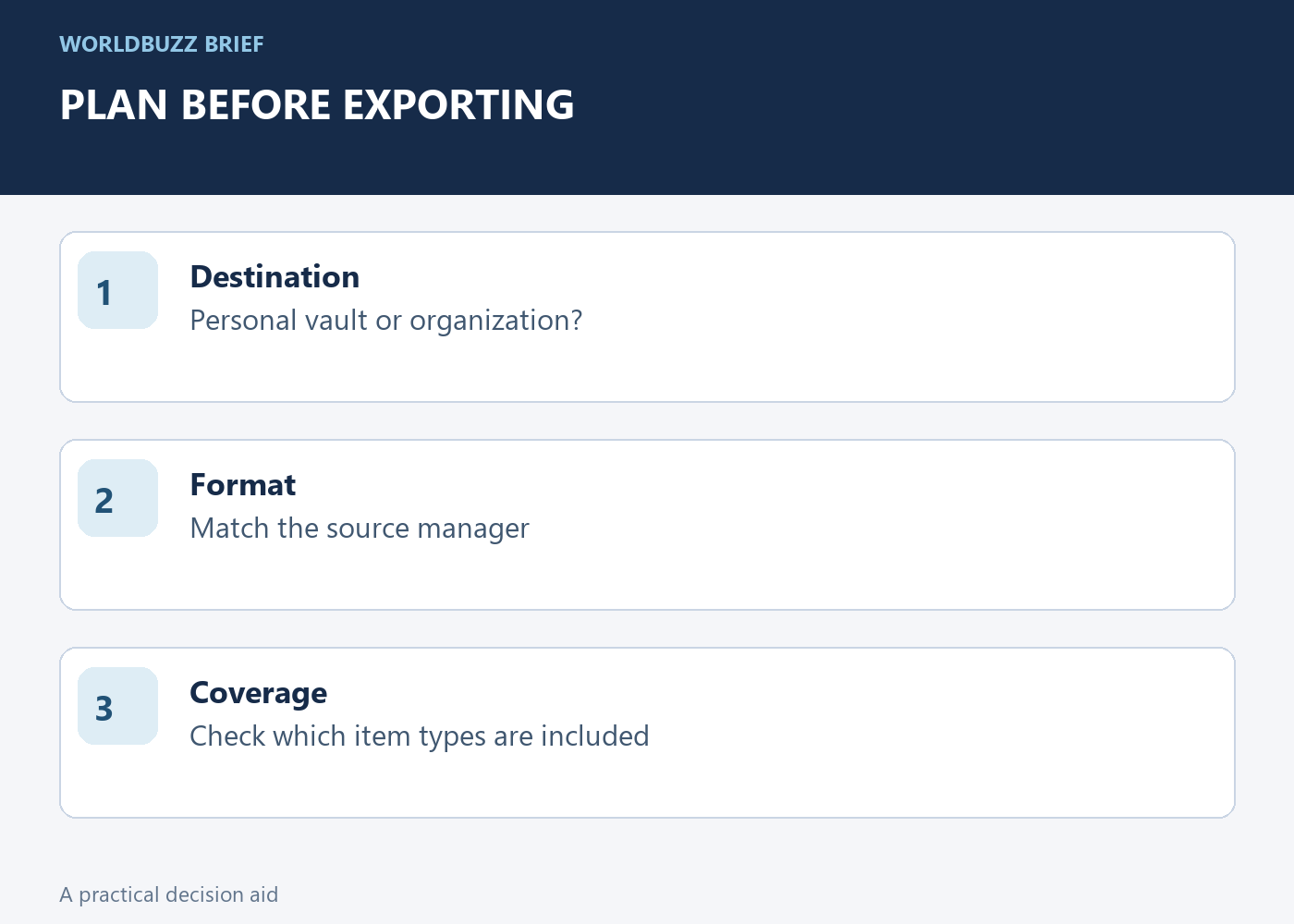
Open the destination manager's current import instructions and select the format matching your source. Check whether you are importing into your personal vault or an organization. Those are different destinations with different access implications. Do not discover the distinction after placing personal credentials into a shared collection.
Also check what the chosen format includes. Password entries, attachments, passkeys and other stored data do not necessarily travel through the same export route. Make a short inventory of the kinds of items you rely on. If something requires a separate migration method, plan it explicitly instead of assuming a successful password import means the entire account has moved.
Keep the transfer file out of casual sharing paths
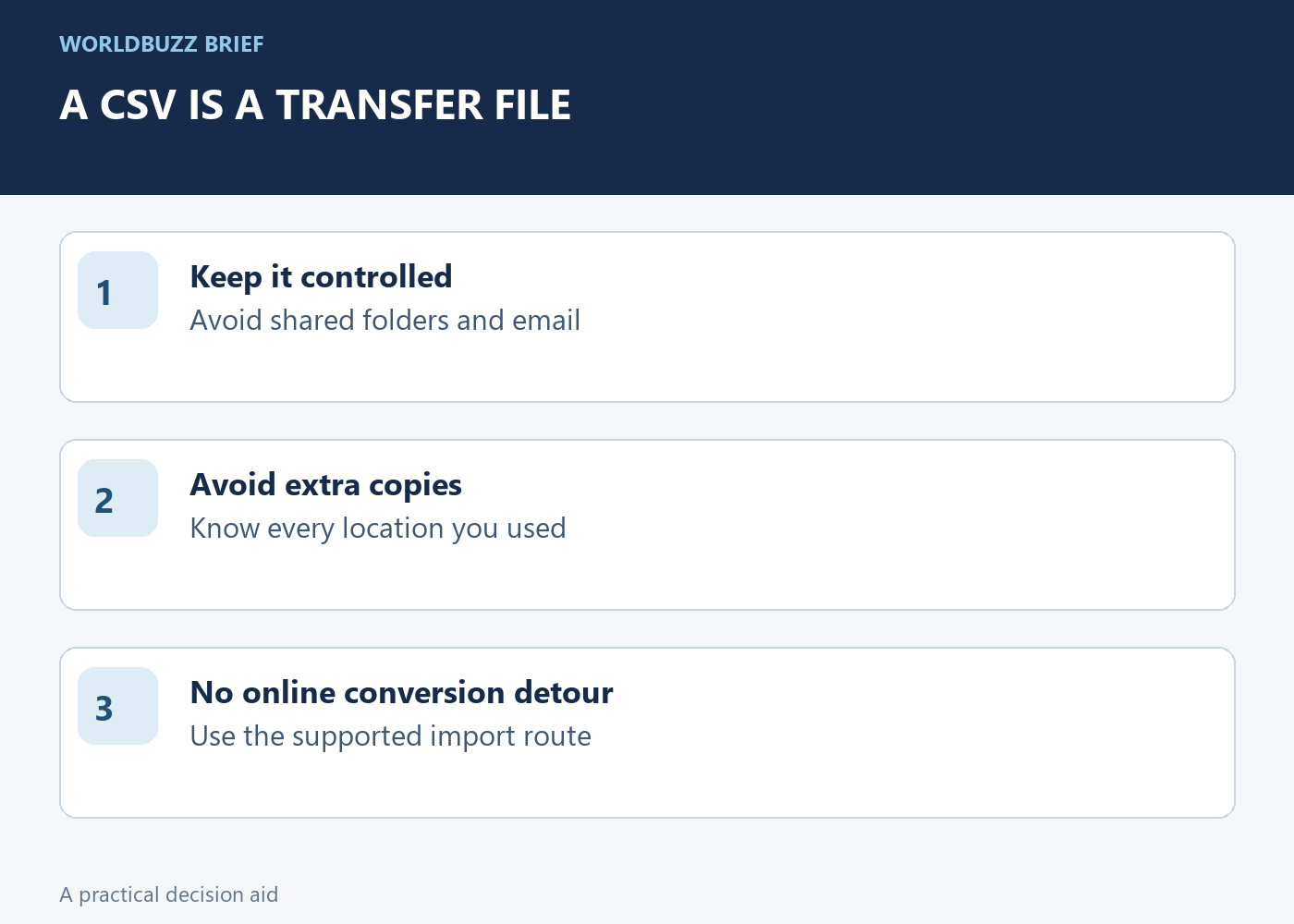
Use a device you control and a location you can find again. Avoid emailing the export, placing it in a shared folder or uploading it to an unrelated conversion website. A plain CSV can expose its contents to someone who can read the file. The convenience of opening it in a spreadsheet does not make it a safe long-term backup.
If you need to inspect a formatting problem, avoid creating unnecessary copies in several applications. Note which file is the original export and which is a working copy. This makes cleanup possible later. Prefer the password manager's supported import path over improvising a chain of online converters that each receive the same sensitive information.
Verify the import before dismantling the old setup
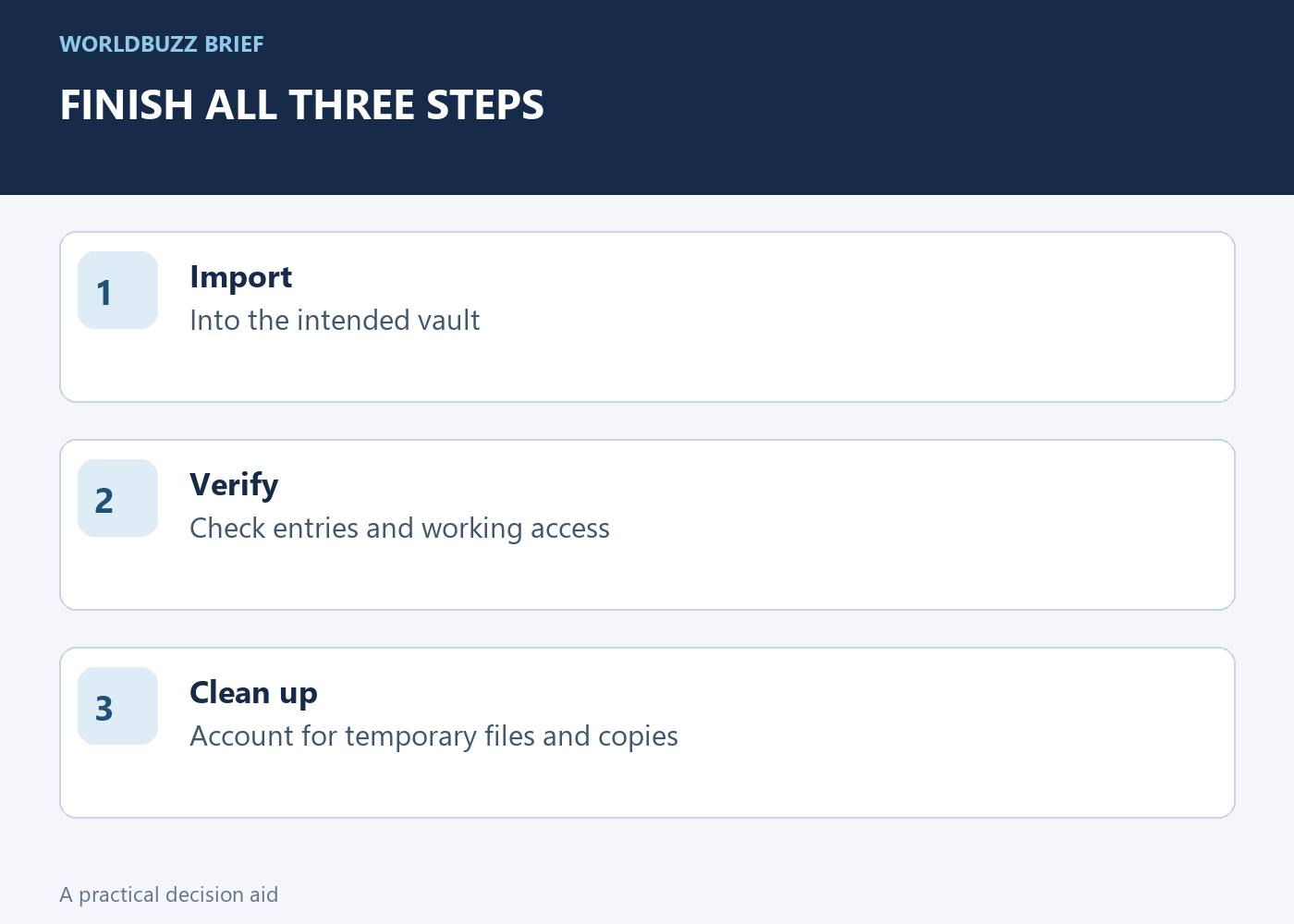
After importing, check a small representative set of entries: the correct website, username and expected fields. Use a low-risk sign-in test where appropriate. Keep your existing working access until you know the destination behaves as intended. An import-complete message is useful, but it does not verify every entry or every item type.
Bitwarden warns that importing does not check for duplicates. If something looks wrong, inspect the result before importing the same file again. Repeating the action can create another set of entries rather than repairing the first one. Keep a record of the import date and source so you can understand what happened without exposing the exported passwords in your notes.
Finish with deliberate cleanup
Once the migration is verified, remove the temporary export and any working copies you created, following the destination's guidance. Check whether your chosen location synchronized the file elsewhere or whether it remains in a recycle bin. Cleanup reduces exposure, but ordinary deletion is not a guarantee that no recoverable copy exists anywhere.
Keep any long-term backup through a method designed for that purpose, with protection you understand and a recovery test. Do not leave an unencrypted transfer file in Downloads simply because the migration succeeded. The complete task has three outcomes: usable entries in the intended vault, working access verified and temporary exports accounted for. Moving the data is only the middle step.