The song title looks right, but the opening contains dialogue or a long scene before the music begins. You switch to audio-only playback and the interruption remains. Before reinstalling YouTube Music, check whether you selected the recording you actually wanted.
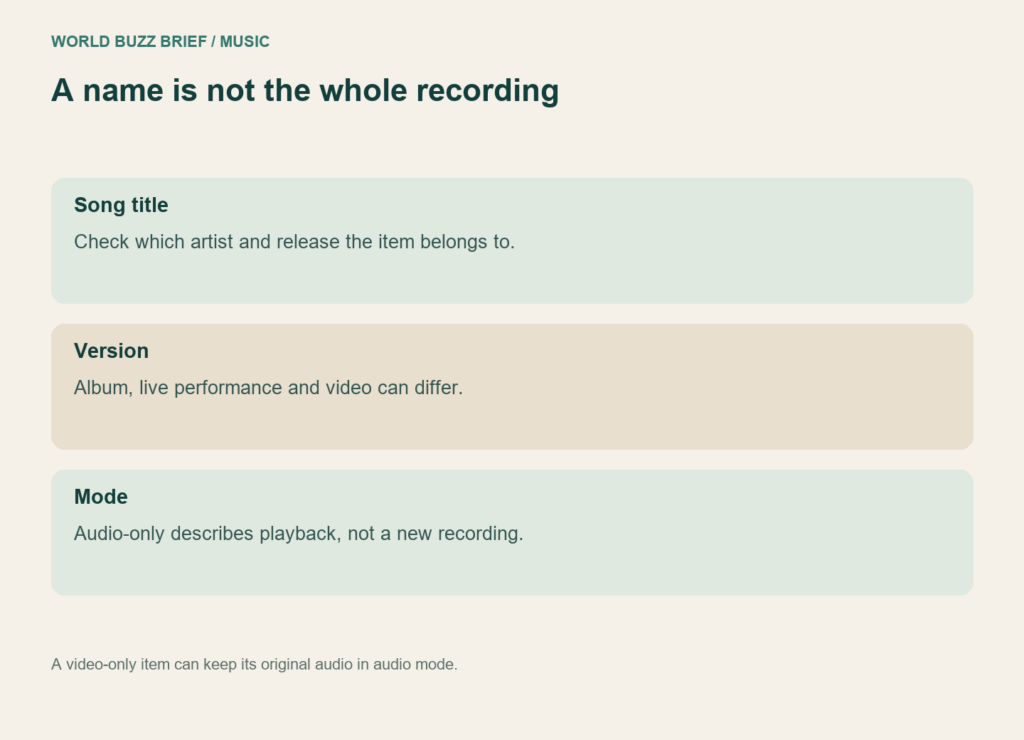
A title is a starting point, not a complete description. An album track, a music video and a live performance can share a name while offering different listening experiences. The useful question is which item is playing, rather than whether the screen is moving.
What the Song switch can—and cannot—do
In the app, YouTube’s audio-mode instructions put Song and Video above music playback. Song selects audio playback; the help page describes the album version. But it also states an important exception: when the only available file is a music video, audio-only mode plays that video’s audio. Hiding the picture does not create another recording.
Music audio-only mode requires Music Premium or YouTube Premium; podcast rules differ, and regional experiences can vary. If the switch is missing, check the account and content type before treating that as a fault. A video choice will also be absent when no video exists.
Find the release, then save that item
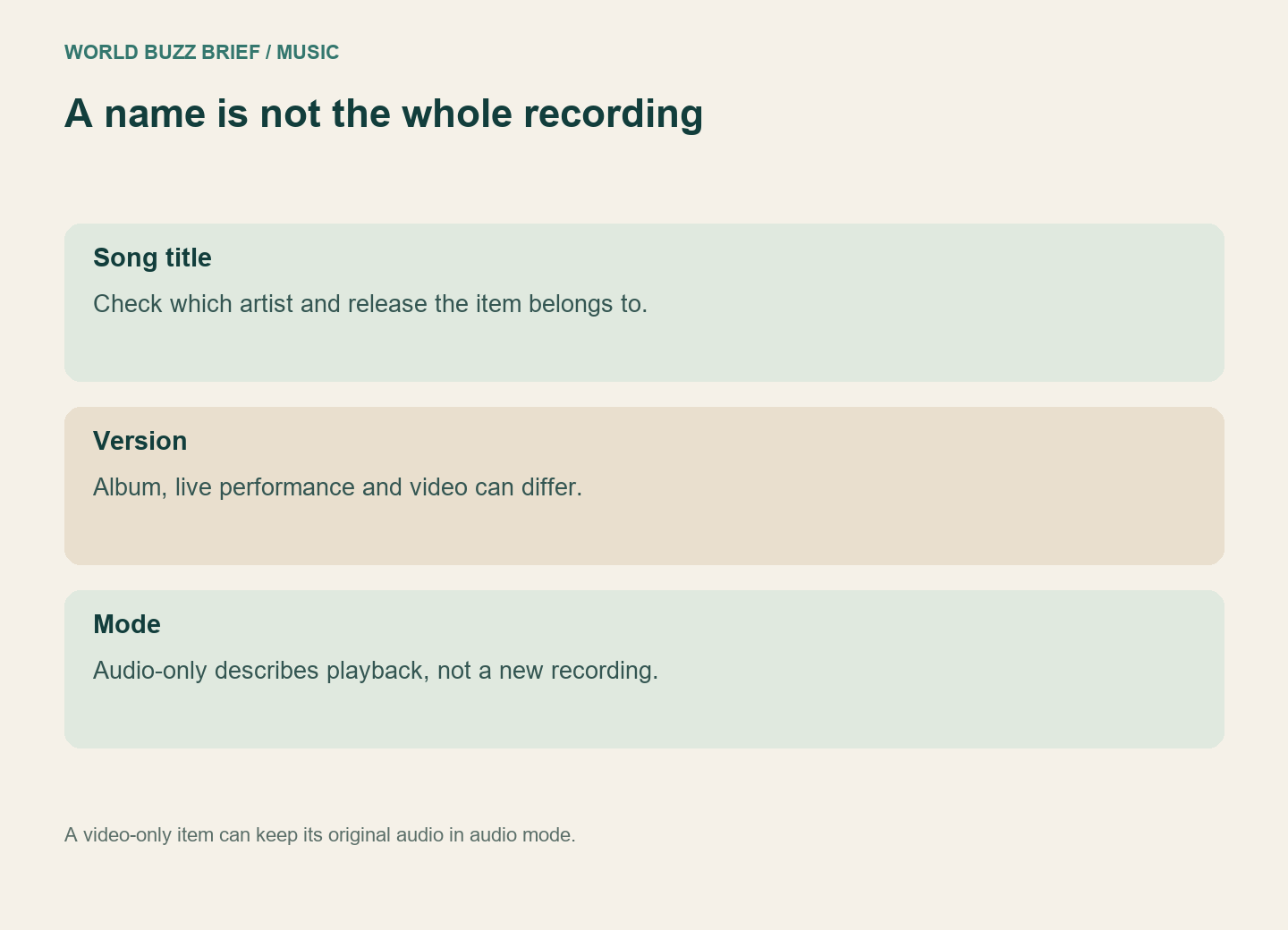
Search for the artist and album together. Compare the album entry with the item you were playing: look at the release name, artist credit and any live, remix or video label. Listen to the opening that caused the problem. Duration can be a useful clue, but a matching duration alone is not proof of an identical recording.
YouTube Music’s library guide explains that songs and albums can be saved separately. Save the intended album or song after confirming it. Merely liking a short video in Samples saves the full song to Liked music; it is not a careful selection of every edition of that release.
Set a preference without expecting a catalogue change
For routine audio listening, the app’s Settings → Data saving menu offers Don’t play music videos. That preference controls playback behaviour; the video-only exception still matters. Repeatedly toggling it will not manufacture a separate studio track.
If the album recording is unavailable, decide whether you want the available performance or a different song. Do not rename a live version “studio” in your own notes just to make the playlist appear complete.
Keep a useful record if playback is still wrong
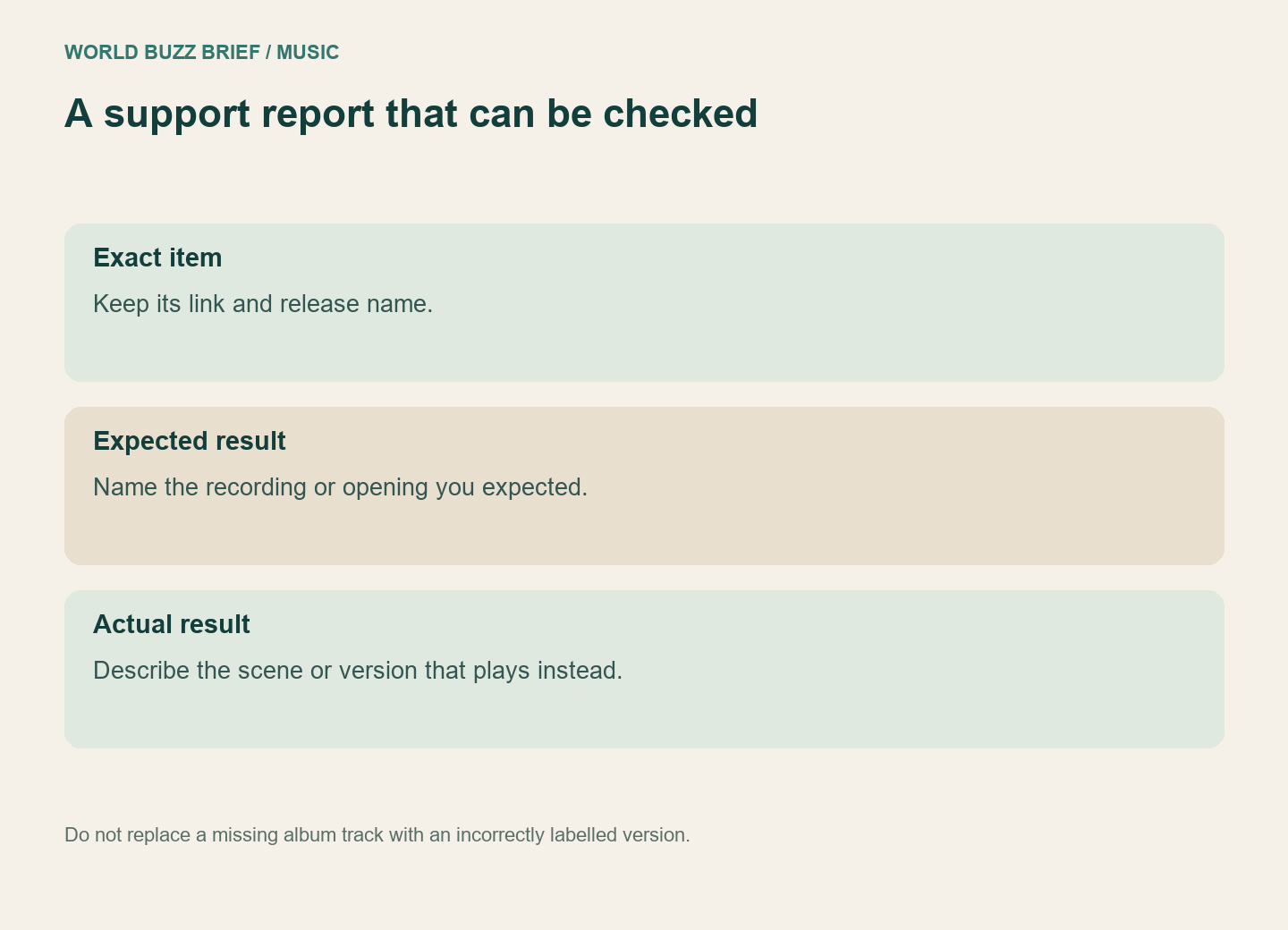
Save the exact item link, the release you expected, the app version and a short description such as “spoken scene remains before the first verse.” Compare the same item once more before reporting it. That gives support a reproducible selection problem rather than a vague complaint about sound quality.