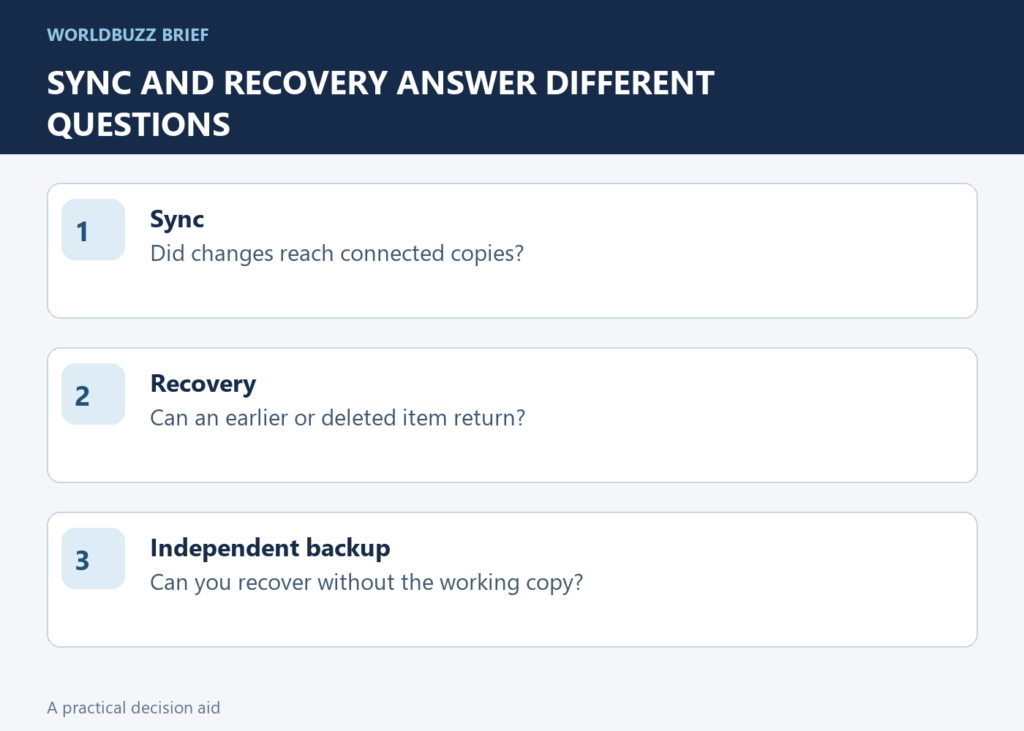
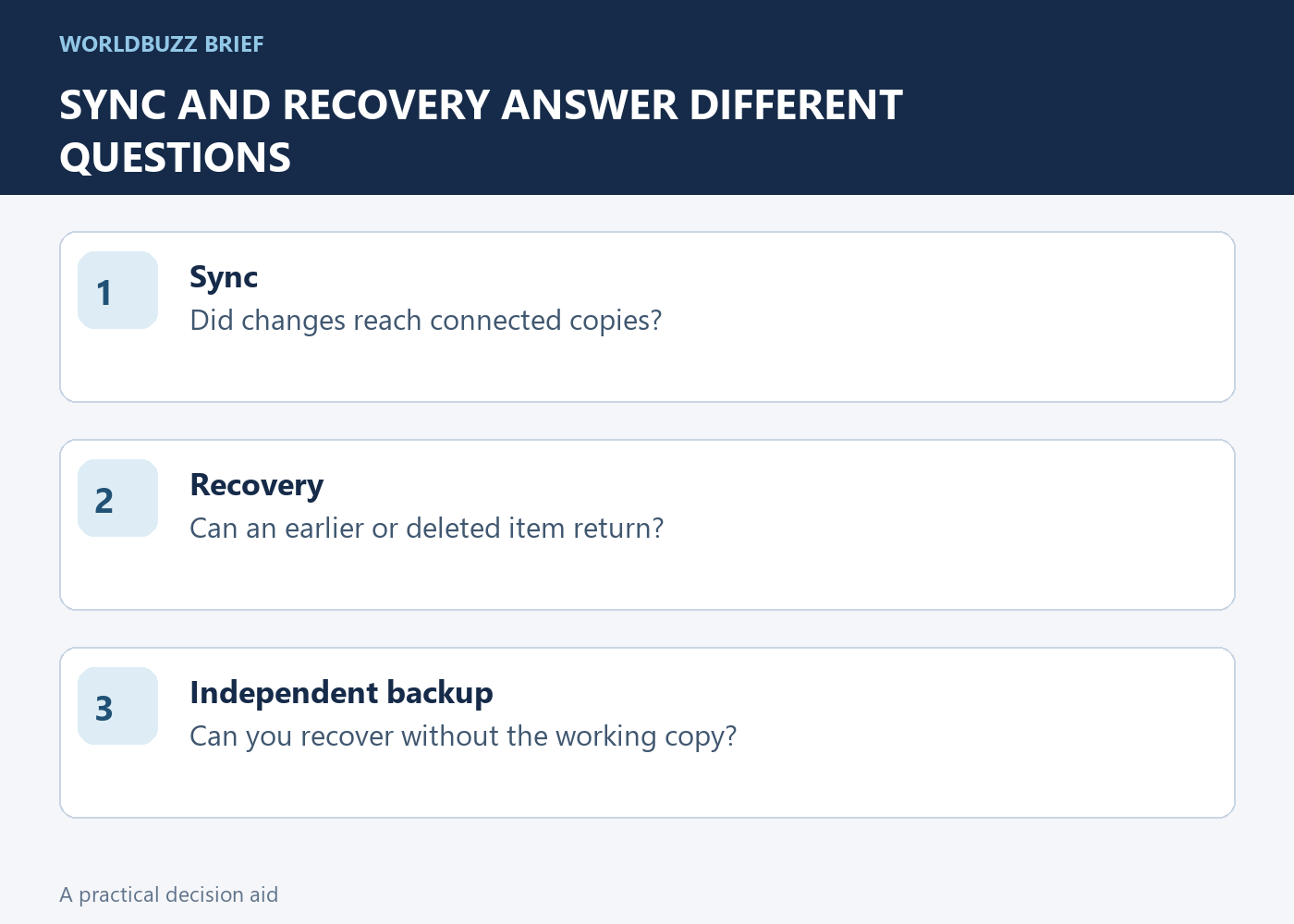
A green sync indicator answers whether changes have synchronized, not whether every previous version can be recovered forever. A useful backup check is a small restore exercise with a disposable file. Do it before the missing document is important.
Understand what deletion will synchronize
OneDrive is designed to keep connected copies in step. Deleting a file from a synchronized location can remove it from OneDrive and other connected devices. If your goal is only to reduce local disk use, use the supported local-space option instead of deleting the item from the synchronized folder.
Start by identifying the exact folder and account involved. A personal account, a work account and a local folder with a similar name are not interchangeable. Write down where the file exists online before changing anything. This avoids diagnosing the wrong storage location just because File Explorer shows a familiar cloud icon nearby.
Test recovery with a disposable document
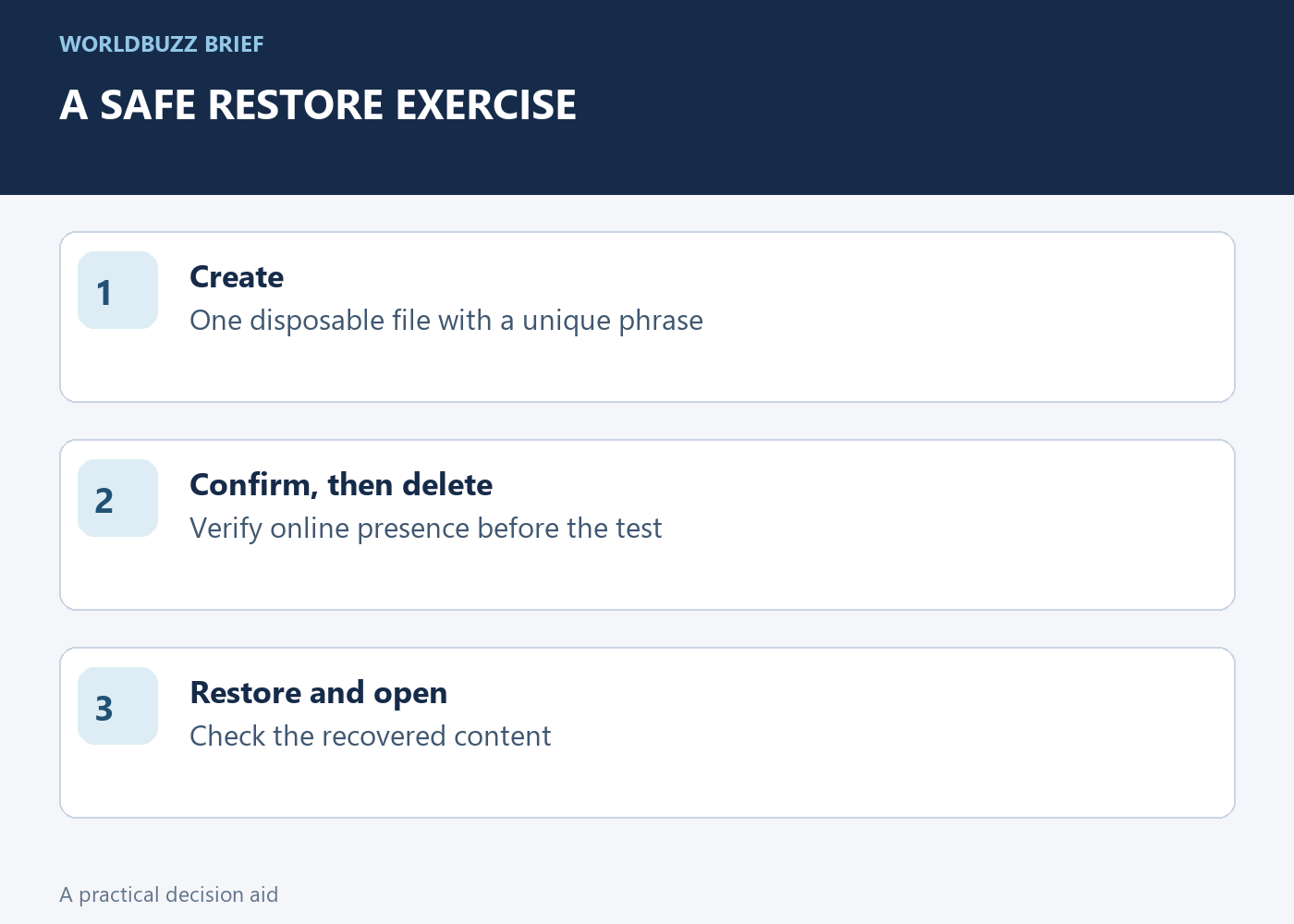
Create a harmless file containing a unique test phrase and let it synchronize. Confirm that you can open it online. Then delete only that disposable item and locate it in the relevant OneDrive recycle bin. Follow the restore process and reopen the recovered file to confirm the phrase is intact.
The exercise should stay small: one file you created for the test, no real project folder and no bulk deletion. Record the account and recovery route that worked. If you cannot find the test file, stop and investigate before making broader assumptions. A successful upload demonstration is not a substitute for a successful restore demonstration.
Check which kind of recovery you need
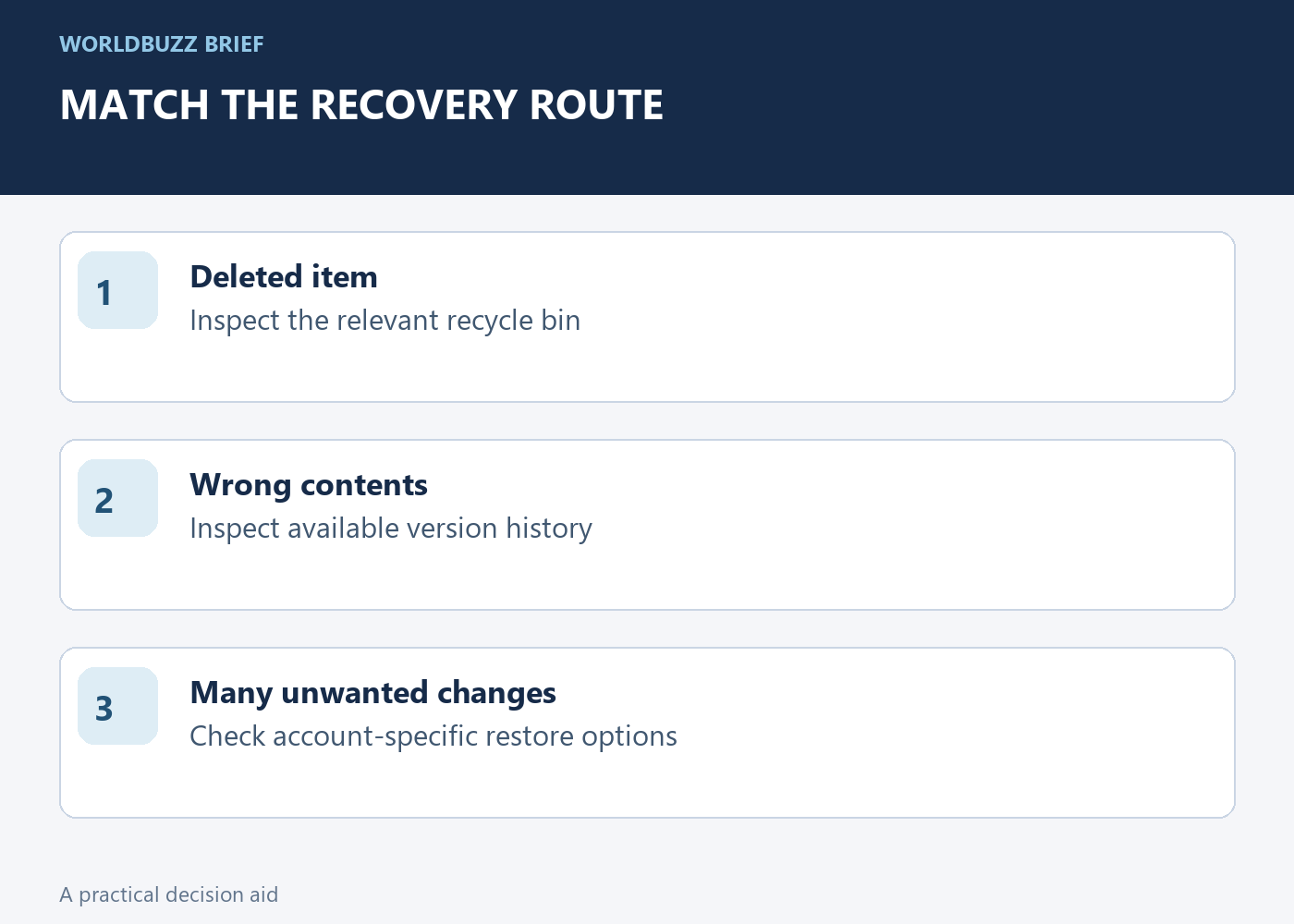
A deleted file, an overwritten file and a large set of unwanted changes are different cases. Microsoft documents recycle-bin recovery, version-related recovery and broader restore options, with availability and retention depending on the account and feature. Check the current options for your own account rather than assuming a subscription feature exists everywhere.
For an overwrite test, use another disposable document and make a clearly identifiable change. Inspect the available version history without overwriting important work. The useful result is knowing which earlier version exists and how to recover it. Do not treat a retention period as a promise that every file can always be restored, especially after permanent removal or an account change.
Keep an independent copy for what matters most
Synchronization is convenient for continuity across devices. An independent backup serves a different purpose when an unwanted change or account problem affects the synchronized set. Choose a backup location and routine that fit the importance of the files, and test that you can read the backup without relying on the original working folder.
Keep the final record short: what is protected, where the copy is, when it was made and how you restored a sample. Repeat the check after major storage or account changes. You do not need a complicated dashboard to learn whether recovery works. One verified small restore is more useful than a long list of backup tools that have never returned a file to you.